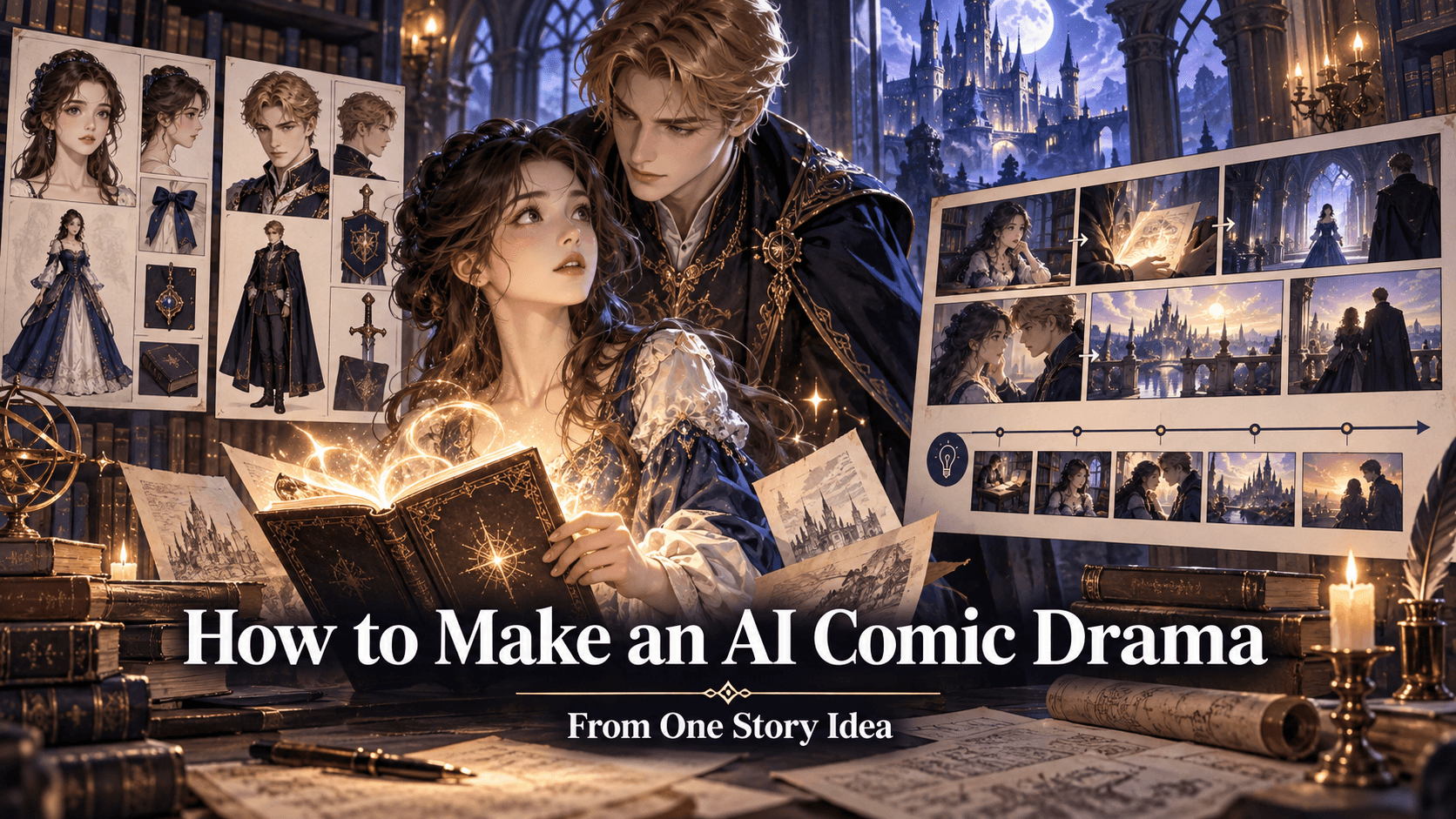
Elser AI Supports GPT Image 2 — The Best AI Image Generator of 2026, Now in One Platform
Alright, let‘s talk about the biggest AI image news of 2026.
On April 21, 2026, OpenAI released GPT Image 2—and within hours, it completely upended the AI image generation landscape. It shot straight to #1 on every Image Arena leaderboard with a jaw-dropping ELO score of 1512, sitting 242 points above the next closest model. That‘s the widest margin the Arena has ever recorded.
But here‘s the thing that most people don‘t realize: GPT Image 2 isn‘t just “better.” It‘s fundamentally different. OpenAI rebuilt the entire architecture from scratch, effectively retiring DALL-E 2 and DALL-E 3 on May 12, 2026. GPT Image 2 is now OpenAI‘s only image generation model going forward.
And yes, you can access it directly through Elser AI.
In this guide, I‘ll break down what makes GPT Image 2 so revolutionary, how to use it inside Elser‘s platform, and why this integration changes everything for creators.
GPT Image 2: Why It‘s Not “Just Another Image Generator”
Let me explain why GPT Image 2 matters—not with hype, but with technical facts.
Every previous AI image generator (DALL-E 3, Midjourney, Stable Diffusion) ran on diffusion architecture. Here‘s how diffusion works: the model starts with random visual noise, then gradually “denoises” it until an image appears. This process is brilliant at generating photorealistic textures, faces, and objects.
But diffusion has a fatal flaw: it can‘t render text accurately.
Think about it. In any training image, the actual text occupies a tiny percentage of total pixels. A photo of a coffee shop contains thousands of pixels of walls, furniture, and lighting—but only a thin strip for the “OPEN” sign. Diffusion models learned what text looks like, not what text means. That‘s why every diffusion-based generator produced gibberish on signs, logos, and posters. The letters looked sort of like letters, but they didn‘t spell anything real.
GPT Image 2 throws out diffusion entirely.
OpenAI rebuilt the model on an autoregressive architecture—the same fundamental approach behind LLMs like GPT-4. The model discretizes images into “image tokens” and predicts them sequentially, similar to how GPT predicts words in a sentence. In plain English: GPT Image 2 thinks about images the way large language models think about language. It understands spatial relationships, object permanence, and typographic rules because it processes images as structured data—not just pixel noise.
The result? 99% accurate text rendering in English and over 90% in languages like Chinese, Japanese, Korean, Hindi, and Arabic. For the first time ever, you can prompt an AI image generator to produce a poster, a UI mockup, a book cover with a title, or a meme with actual readable words—and it works.
GPT Image 2‘s Key Features (That Actually Matter)
Beyond text rendering, GPT Image 2 brings several features that make it the best AI image generator for real-world creative work.
Built-in Reasoning (Thinking Mode) — This is huge. In addition to standard “Instant Mode” (fast generation, about 3 seconds per image), GPT Image 2 offers a “Thinking Mode” exclusive to Plus and Pro users. Thinking Mode runs the generation through an 8-step reasoning pipeline—create → draft → initial generation → scene building → detail polish → finalize → refine → micro-adjust. The model can search the web, self-check its output for errors, and iteratively correct mistakes before delivering the final image. Think of it as the AI “double-checking its work” before showing you the result.
Multimodal Input — You‘re not limited to text prompts. GPT Image 2 can accept image inputs and build upon them. Upload a rough sketch, a color reference, or even a photo of an object, and the AI will generate new images that incorporate your visual references.
Multi-Image Consistency — Generate up to 8 connected images with consistent characters, styles, and objects in a single run. This is perfect for manga panels, comic strips, social media carousels, and brand kits. In fact, one beauty blogger reportedly used GPT Image 2 to generate an entire brand kit—logo, color palette, typography, and multi-page application templates—from a single prompt.
2K Standard Output (4K via API) — The standard output resolution is 2K, with 4K support available through the API in beta. Aspect ratios range from 3:1 to 1:3, with native 16:9 and 9:16 support.
How to Use GPT Image 2 on Elser AI
Here‘s where Elser AI comes in. Instead of subscribing to ChatGPT Plus (or Pro, which costs $200/month) just to access GPT Image 2, you can use it through Elser‘s unified platform—alongside every other AI tool you need.
Step 1: Log Into Elser AI
If you don‘t have an account yet, head to https://www.elser.ai/ and sign up for free. You‘ll receive welcome credits that you can use to test GPT Image 2 generation.
Step 2: Select GPT Image 2 from the Model Dropdown
Start a new Image Generation project. In the model selection menu, look for “GPT Image 2” or “GPT-Image-2.” Depending on your plan, you may also see options for “Instant Mode” (faster, available to all users) and “Thinking Mode” (higher quality, for paid tiers).
Step 3: Write Your Prompt
This is where GPT Image 2 really shines. Because it‘s built on an LLM architecture, it understands natural, conversational language better than any image generator before it. You don‘t need to learn special prompt syntax or memorize keyword patterns.
That said, following some basic structural principles will improve your results dramatically. According to recent testing guides, the most effective prompts for GPT Image 2 follow a four-layer structure:
- Subject — What is in the image? (“A young wizard sitting at a wooden desk.”)
- Style — What does it look like? (“Ghibli-inspired anime art style, soft lighting, warm color palette.”)
- Composition — How are elements arranged? (“Low angle shot, wizard centered in frame, floating spellbook on the left, potion bottles on the right.”)
- Modifiers — What details complete the scene? (“Glowing runes floating in the air, autumn leaves visible through a window in the background.”)
You can combine all four layers into a single sentence or break them apart with line breaks. GPT Image 2 handles both equally well.
For text rendering, enclose any text that should appear in the image in quotes, like this: “The book‘s cover displays the title ‘The Last Spell‘ in elegant gold serif font.” The model will render it accurately in the final image.
For multi-image consistency, describe a sequence: “Generate 4 connected images showing: (1) A hero drawing a sword, (2) The hero facing a dragon, (3) Close-up of the hero‘s determined face, (4) The hero and dragon flying away together.” GPT Image 2 will maintain character and style across all four outputs.
Step 4: Choose Instant vs Thinking Mode
If you‘re in a hurry or just testing ideas, Instant Mode will generate an image in about 3 seconds. Free tier users get a limited number of Instant Mode generations per day (about 2-3 every 24 hours).
If you need pixel-perfect quality and have time to wait, Thinking Mode takes 30-60 seconds but runs through the full 8-step reasoning pipeline. The difference in quality is substantial—Thinking Mode catches errors, refines details, and produces images that often require no further editing.
Step 5: Generate and Refine
Click generate and watch GPT Image 2 work. Because the model supports native multi-round editing, you can refine the image conversationally. Try prompts like “make the lighting warmer,” “move the wizard‘s hand to hold the wand differently,” or “change the potion bottle from green to purple.” The model remembers the original image and applies your edits without regenerating everything from scratch.
Step 6: Export
Once you‘re satisfied, export your image in your chosen resolution. Higher-tier Elser plans unlock watermark-free downloads and higher resolution outputs (up to 4K where supported).
Real Example: Generating an Anime Poster
I wanted to test GPT Image 2‘s text rendering and style consistency, so I prompted it to create an anime movie poster:
“A dramatic anime movie poster. A teenage hero with spiky black hair and a red scarf stands in the foreground, looking over his shoulder with a determined expression. In the background, a massive mechanical dragon towers over a futuristic city at sunset. The poster title ‘Neo Guardian‘ appears at the top in bold white and gold font. The tagline ‘ONE BOY. ONE DRAGON. ONE LAST CHANCE.‘ appears at the bottom in smaller white text. Studio logo in the corner. Deep orange and purple color palette. Cinematic lighting.”
GPT Image 2 generated the poster in Thinking Mode (took about 45 seconds). The result? The title text was perfect. Every letter of “Neo Guardian” was crisp and correctly positioned. The tagline was fully legible. The character‘s red scarf matched across all details. The dragon looked genuinely imposing. And the overall composition felt like something you‘d actually see on a real anime movie poster.
I‘ve tried generating similar posters with every other AI image tool on the market. None of them got the text right. GPT Image 2 did it on the first try.
GPT Image 2 vs. The Competition in 2026
To give you some perspective on where GPT Image 2 sits in the 2026 AI image landscape:
Midjourney v7 still leads for pure aesthetic quality—the “vibe” and artistic beauty of its outputs are unmatched. But Midjourney lags significantly in text rendering, conversational iteration, and integration with other tools.
Ideogram v3 leads for typographic accuracy among diffusion-based models. But GPT Image 2‘s 99% English text accuracy surpasses even Ideogram.
Flux.1 from Black Forest Labs is strong across multiple dimensions but doesn‘t match GPT Image 2‘s text rendering or multi-image consistency.
Nano Banana 2 (Google‘s Gemini-based image model) is GPT Image 2‘s closest competitor, but OpenAI‘s model consistently outperforms it on text-related tasks and complex spatial reasoning.
The bottom line: no single model is “best” at everything. But for creators who need accurate text, multi-image consistency, and natural language control, GPT Image 2 is the undisputed leader—and Elser AI makes it accessible alongside all your other tools.
Why Use GPT Image 2 Inside Elser AI?
You could, in theory, subscribe directly to ChatGPT Plus ($20/month) just to access GPT Image 2. But why would you, when Elser gives you so much more?
Inside Elser AI, GPT Image 2 isn‘t an isolated tool—it‘s integrated into a complete creative workflow. Here‘s what that means:
- Generate character art with GPT Image 2, then immediately animate it with Kling 3.0 without leaving the platform
- Use GPT Image 2 to generate background scenes, then combine them with Elser‘s character creator for full storyboards
- Generate a series of images with GPT Image 2‘s multi-image consistency feature, then use Elser‘s video tools to animate them into a coherent sequence
- Export your GPT Image 2 creations directly to Elser‘s project library, ready for the next step of your production
Plus, Elser‘s pricing is more flexible than a standalone ChatGPT Plus subscription, especially if you‘re already using other AI tools. Instead of paying for ChatGPT and Midjourney and Kling and ElevenLabs, you pay for Elser and get access to all of them (including GPT Image 2) in one place.
Ready to Try GPT Image 2 on Elser AI?
GPT Image 2 is the biggest leap forward in AI image generation since the original DALL-E. OpenAI rebuilt the entire model from scratch, retired DALL-E for good, and delivered the first autoregressive image generator that actually works for real-world creative tasks.
And thanks to Elser AI, you can use it today—alongside Kling 3.0, Elser‘s own image and video tools, and everything else you need to bring your creative vision to life.
Start generating with GPT Image 2 on Elser AI for free →
Your welcome credits are waiting. Go make something extraordinary.