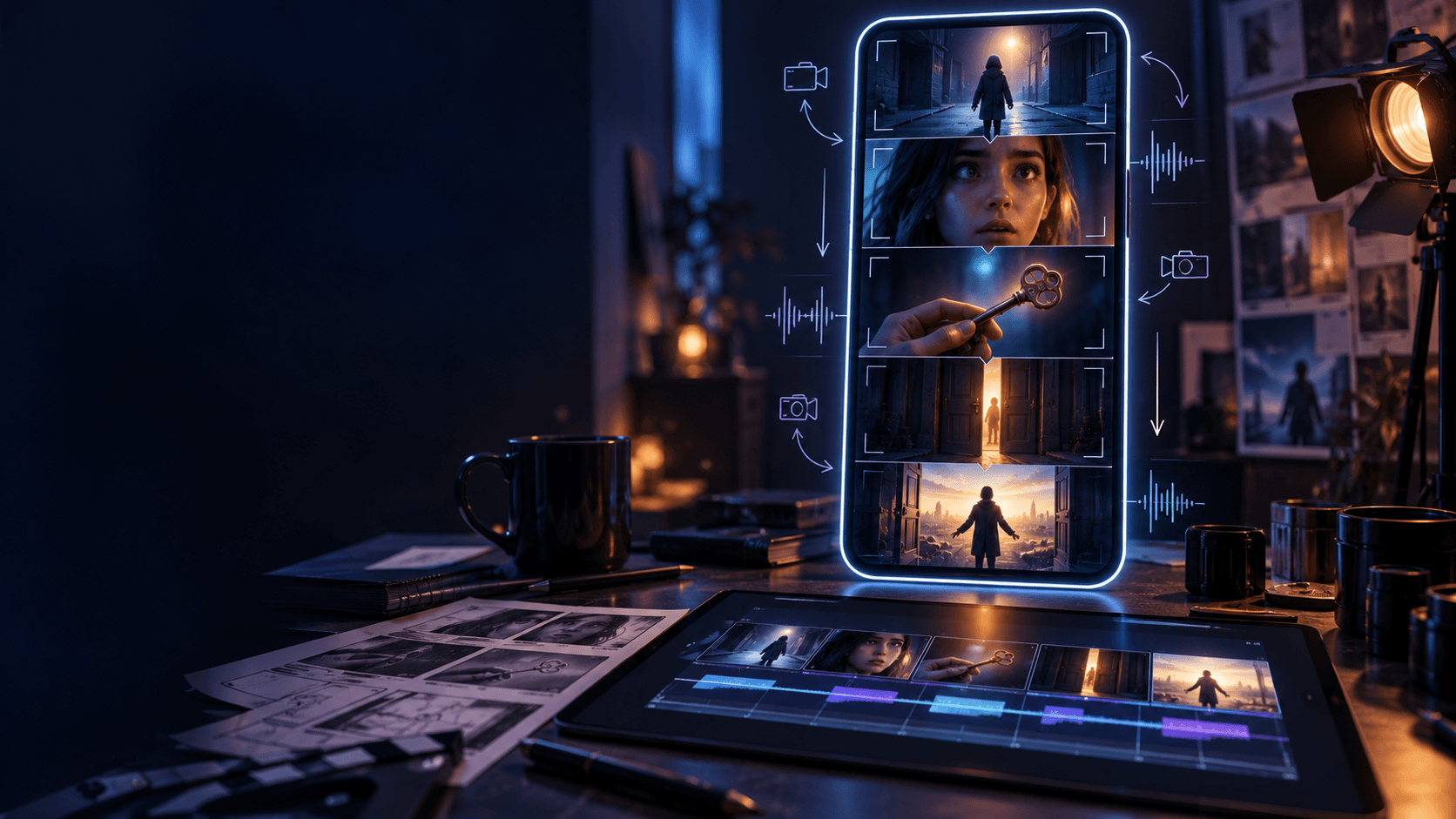
Grok AI Video Generator Guide: How to Create Videos With Grok Imagine
Grok is no longer only a chatbot. With Grok Imagine, creators can generate short videos from written descriptions or reference images, then iterate on the result in the same creative workflow. The technology is useful for concept shots, social clips, animated artwork, product visuals, storyboards, and scenes that would otherwise require a camera crew or a lengthy animation process.
This guide explains what the Grok AI video generator does, how to use it effectively, and where a creator-friendly platform such as Elser AI’s Grok Imagine workspace can make the process easier.
What is Grok AI video?
Grok AI video refers to video-generation models in xAI’s Grok Imagine family. The current experience supports text-to-video and generation from reference photos. xAI says Grok can create video inside the Grok experience, while the Imagine API makes the same category of models available to developers.
The basic workflow is simple:
- Describe the scene you want.
- Add a source image when visual control matters.
- Define motion, camera behavior, mood, and timing.
- Generate a short clip.
- Review the result and revise one variable at a time.
The output should be treated as a shot rather than a finished film. Strong creators assemble several generated shots, edit them to music or narration, and add titles, captions, sound design, and brand elements afterward.
Text-to-video vs image-to-video
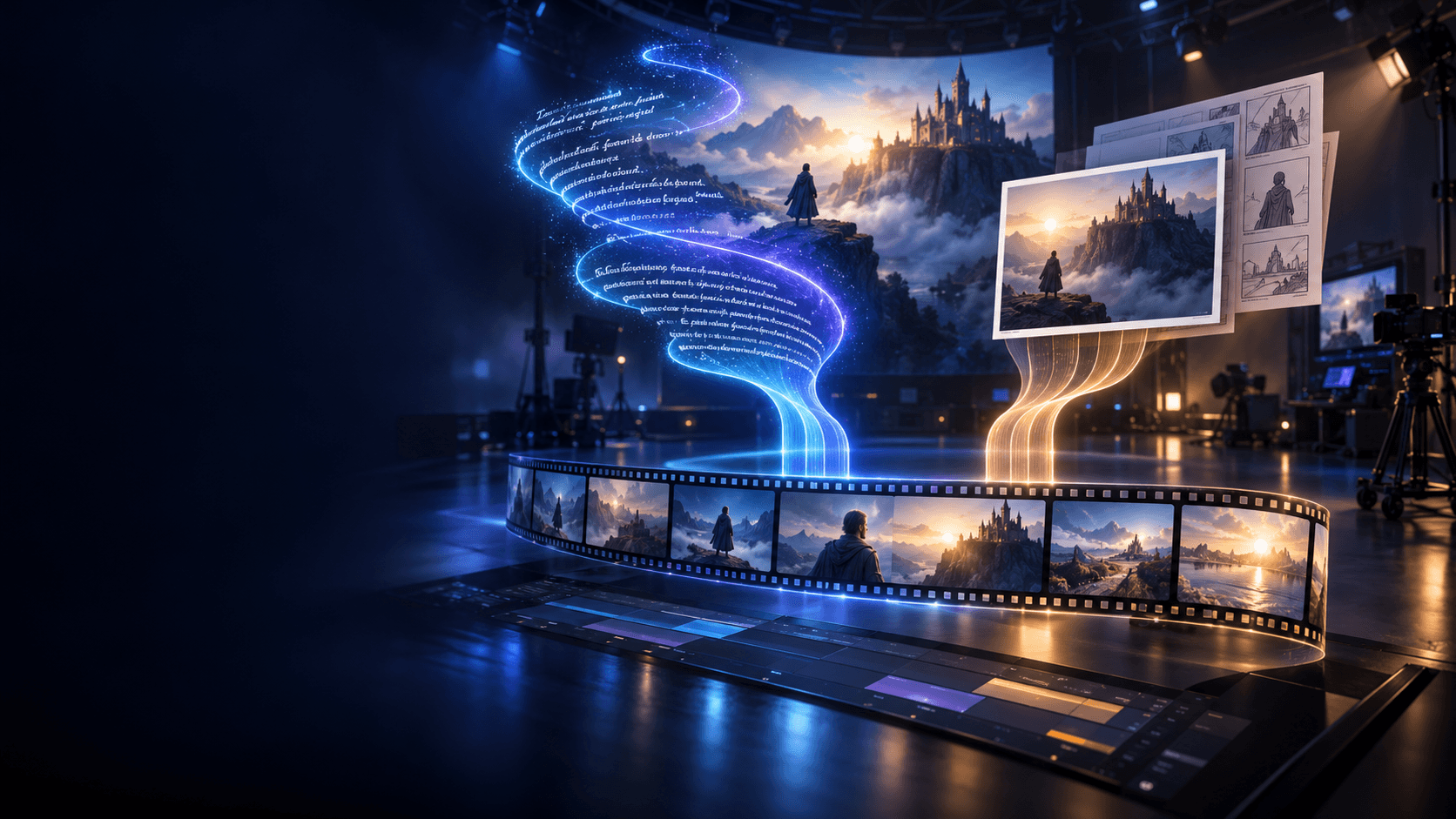
Text-to-video is best when exploration matters more than exact visual continuity. You describe a subject, environment, action, camera move, lighting, and style, and the model creates the scene from scratch.
Image-to-video begins with a still image. This gives the model a clearer subject, composition, color palette, and art direction. It is usually the better choice for:
- animating a product photograph;
- bringing an illustration or comic panel to life;
- preserving the look of a character;
- creating motion from approved campaign artwork;
- turning a portrait into a short introduction.
Elser AI places text-to-video and image-to-video options in a browser-based workflow, so creators can test Grok Imagine without installing local software or managing a GPU. The Grok landing page on Elser AI also explains the controls available for different model versions and generation modes.
How to write a good Grok AI video prompt
A reliable prompt describes what can be seen and how it changes over time. Use this structure:
Subject + action + environment + camera + lighting + timing + constraints
For example:
A matte-black perfume bottle sits on wet stone at night. Fine rain falls as the camera performs a slow 30-degree orbit. A soft coral light moves across the glass, revealing condensation and realistic reflections. Premium beauty advertisement, shallow depth of field, smooth motion, no text, no extra objects.
This works because it separates the subject, physical action, camera behavior, visual mood, and exclusions.
Avoid stacking unrelated events into one short clip. “A woman opens a door, enters a city, changes clothes, rides a motorcycle, and watches the sunrise” asks the model to resolve too many state changes. Generate those moments as separate shots instead.
Step-by-step: create your first Grok video
1. Choose one shot goal
Decide what the clip must accomplish. Is it a product reveal, an establishing shot, a character reaction, a camera transition, or a looping background? One clear goal improves both the prompt and the edit.
2. Select the generation mode
Use text-to-video for ideation. Use image-to-video when the starting appearance matters. If your workflow supports multiple references, use them to communicate character, clothing, style, or environment rather than trying to describe every detail in prose.
3. Match the aspect ratio to the destination
Choose 16:9 for YouTube and presentations, 9:16 for Shorts, Reels, and TikTok, or 1:1 for feeds and flexible campaign placements. Composing for the final format prevents important details from being cropped later.
4. Describe motion, not just appearance
An image prompt might say “a cinematic astronaut portrait.” A useful video prompt adds temporal direction: “the astronaut turns toward the window as reflected city lights sweep across the visor; the camera slowly pushes in.”
5. Generate and inspect
Look for identity drift, warped hands, unstable backgrounds, unexpected objects, abrupt camera movement, and audio that conflicts with the action. Keep the successful parts and revise only the weak variable.
6. Finish in an editor
Trim the strongest section, combine shots, balance audio, add captions, and export for the target platform. AI generation produces raw material; editorial decisions create the final story.
Practical use cases
Grok AI video can support:
- social media hooks and visual transitions;
- animated comic panels and illustrated stories;
- product reveals and e-commerce ads;
- mood shots for music and narration;
- previsualization for filmmakers;
- character-driven short-form series;
- background footage for explainers.
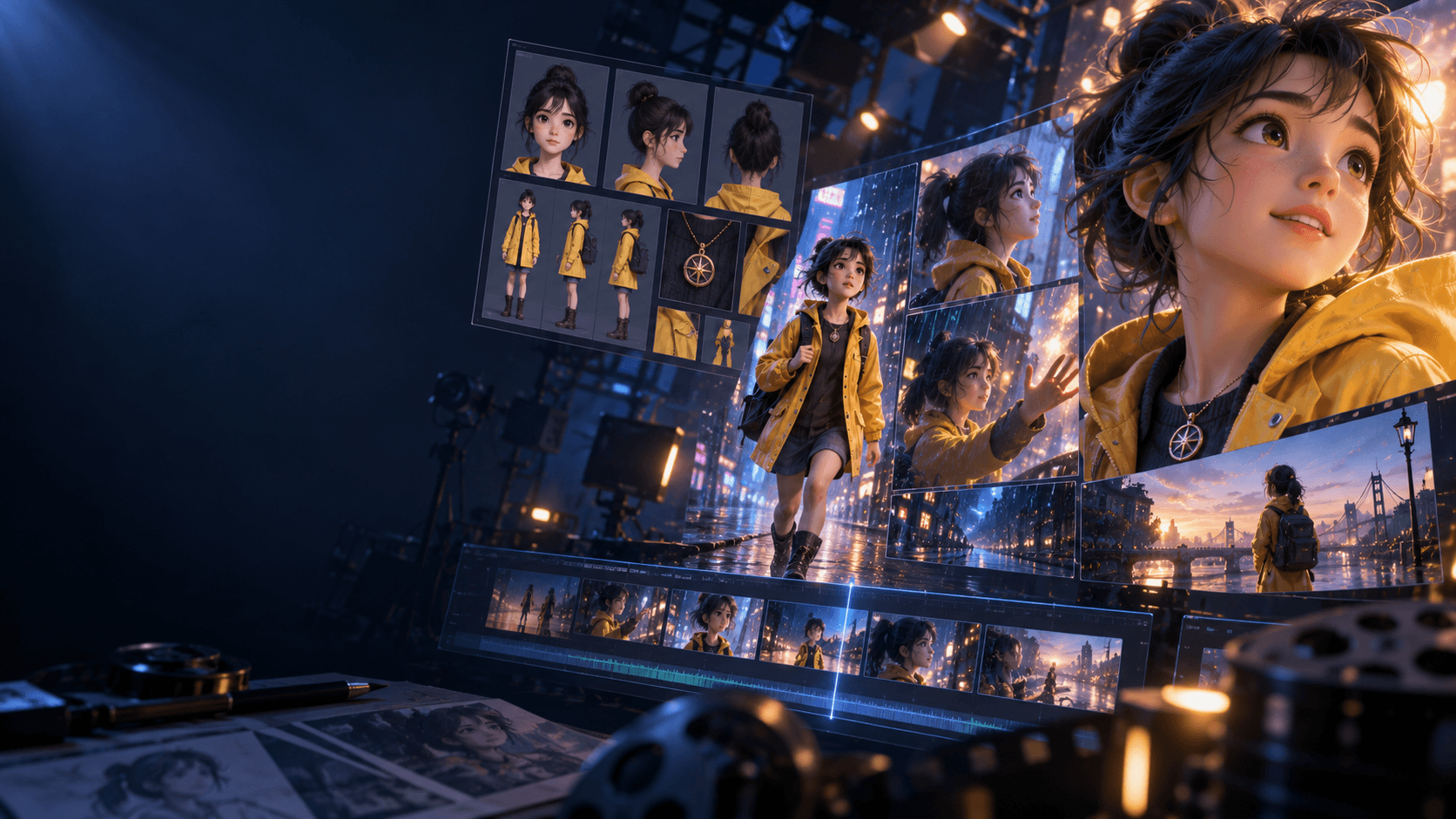
For recurring characters or illustrated storytelling, begin with approved reference images and keep prompts consistent. Repeating a compact “character lock” sentence—hair, outfit, age, defining features, and color palette—can reduce unnecessary variation.
Common mistakes to avoid
- Writing a still-image prompt: Specify movement and change over time.
- Requesting too many actions: Divide complex sequences into shots.
- Ignoring camera language: State whether the camera is locked, panning, orbiting, tracking, or pushing in.
- Changing every prompt variable: Iterate systematically so you know what improved the result.
- Generating before choosing the format: Set the aspect ratio for the publishing channel first.
- Treating the first output as final: Budget for selection, regeneration, and editing.
Is Grok AI video the right choice?
Grok Imagine is a strong option for creators who want fast short-form generation, image-led animation, and a workflow that can include native audio. The best model still depends on the job: product shots, stylized character clips, realistic physics, and long multi-shot narratives have different requirements.
If you want to experiment without building an API integration, try Grok Imagine Video through Elser AI. Start with one well-composed image and a single camera move, then expand the winning visual language into a sequence.
FAQ
How long can Grok AI videos be?
xAI currently documents generation of up to 15 seconds in its consumer and developer materials. Available duration choices can vary by model, interface, plan, and generation mode.
Does Grok generate audio?
Grok Imagine Video 1.5 supports generated sound effects, ambience, dialogue, and improved speech synchronization, according to xAI.
Can I use a photo as the starting frame?
Yes. Image-to-video generation is one of the core Grok Imagine workflows.
Do I need a powerful computer?
No local GPU is required when using a cloud interface such as Grok or Elser AI.