How to Improve Motion, Physics, and Audio in Grok AI Videos
When a Grok video looks wrong, adding more cinematic adjectives rarely fixes it. The solution is usually to simplify the shot, make motion observable, provide a stronger reference, or state the physical and visual details that must remain unchanged.
This troubleshooting guide focuses on the three areas xAI emphasized for Grok Imagine Video 1.5: motion, physics, and audio. You can apply the workflow in Grok itself or while testing models through Elser AI’s Grok Imagine interface.
Diagnose before regenerating
Classify the failure:
- Identity: face, character, costume, or product changed.
- Motion: action is frozen, rushed, or unstable.
- Physics: weight, collision, liquid, fabric, or geometry feels impossible.
- Camera: movement ignores the prompt or destroys composition.
- Audio: dialogue, ambience, or effects do not match the scene.
- Continuity: separate shots no longer belong to the same sequence.
Regenerate with one targeted correction. If you rewrite everything, you cannot tell which change helped.
Improve subject motion
Describe an action with a beginning, middle, and end:
Weak:
A woman moves naturally in a cinematic scene.
Better:
She pauses, turns her eyes toward the window, then rotates her head approximately 15 degrees. Her shoulders remain still and the movement ends in a relaxed three-quarter pose.
Useful motion words include settles, shifts, unfolds, rotates, glides, leans, recoils, and comes to rest. They imply temporal structure.
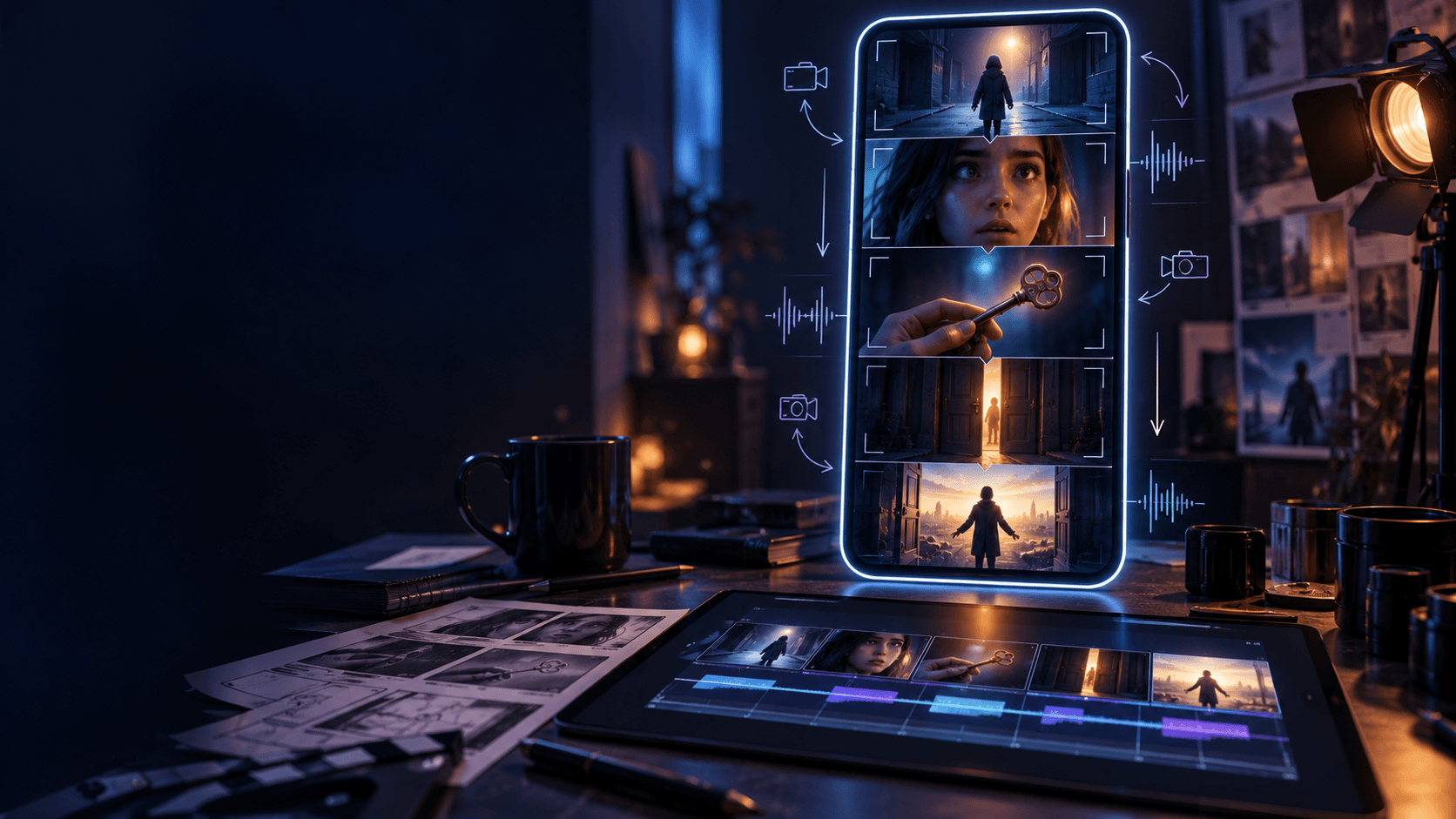
For fast action, break the event into multiple shots. A leap, landing, turn, and strike may be too much for one short generation.
Improve physical realism
Tell the model what has weight and what remains rigid.
For a product:
Preserve the bottle’s exact geometry and label. The cap rotates counterclockwise and lifts vertically. The bottle remains stationary. Reflections respond to the moving light; the glass does not bend.
For clothing:
The heavy coat follows the body turn with a slight delay, then settles. Only the loose hem and hair respond to wind.
For liquids:
Coffee pours in one continuous stream, fills the cup without overflowing, and creates a small circular ripple. Locked camera, realistic gravity.
Avoid combining complex liquid, transparent materials, multiple hands, and a fast orbit in the same shot.
Improve camera control
Use one principal camera move:
- Locked: best for transformations and product geometry.
- Push-in: emphasizes emotion or detail.
- Pull-back: reveals context.
- Pan: follows lateral movement.
- Tracking: moves with the subject.
- Orbit: reveals shape, but can increase deformation risk.
- Crane: changes height and scale.
State speed and range: “slow 15-degree orbit” is more controlled than “dynamic camera.” If the background bends, reduce camera travel or request a locked frame.
Improve identity and design consistency
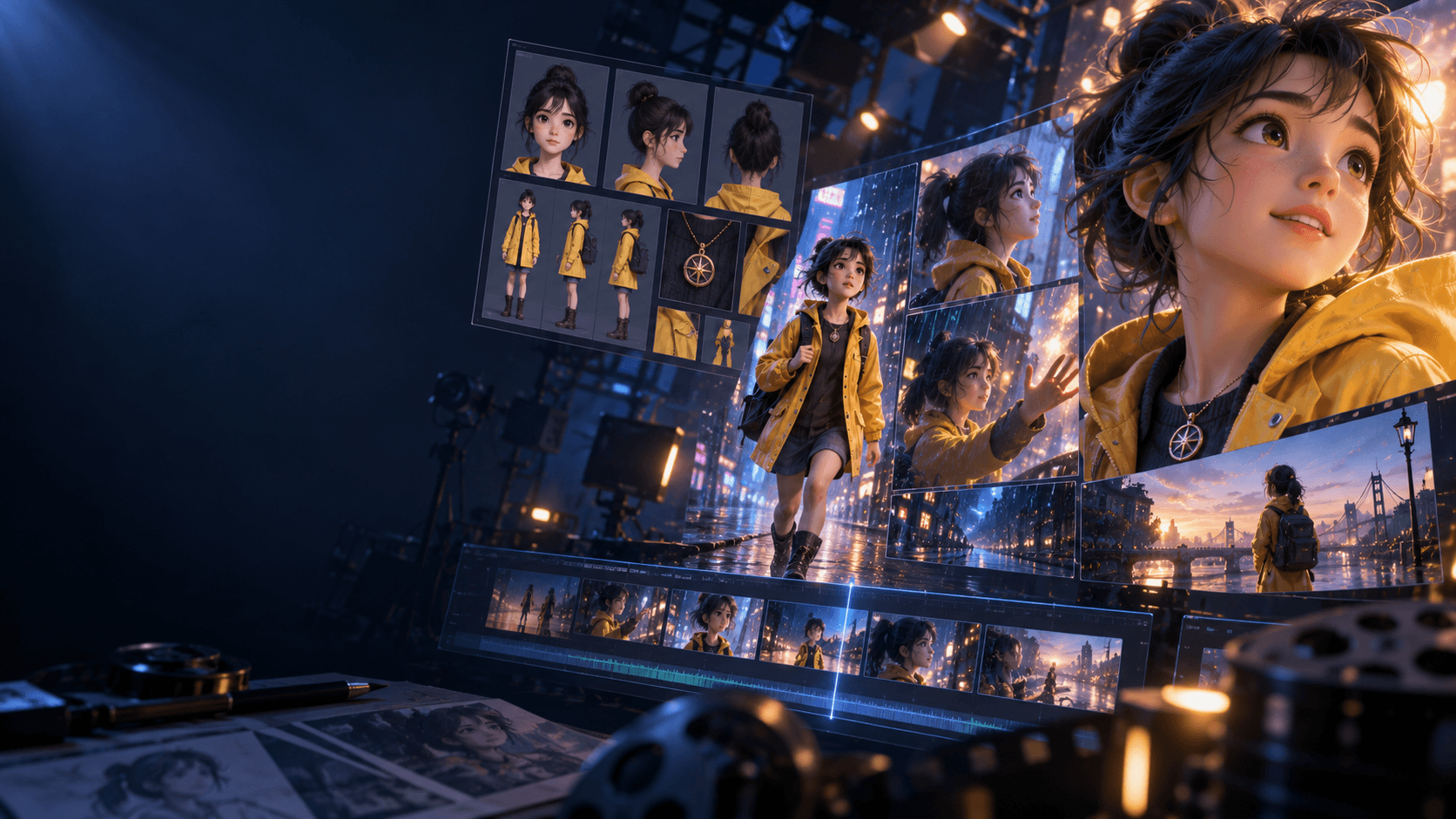
Start with a clean reference image. Then add a compact lock statement:
Preserve facial identity, short black hair, amber eyes, red jacket, navy shirt, silver earring, and body proportions. Do not redesign clothing or add accessories.
For products, lock geometry, materials, label position, and color. For illustrations, lock linework, rendering style, palette, and costume silhouette.
Where a workflow supports multiple references, use each image for a clear role: face, outfit, side view, or environment. Elser AI’s Grok landing page describes reference-led options for supported modes; review the current controls at elser.ai/m/grok.
Improve generated audio
Direct audio in layers:
- Dialogue: exact short line, speaker, tone, pacing.
- Action sound: footsteps, latch, impact, fabric, engine.
- Ambience: rain, room tone, crowd, wind, machinery.
- Music: usually better added during post-production unless the model’s draft is sufficient.
Example:
Quiet workshop ambience with soft rain outside. One clear metal latch click when the case opens. The character says, “Ready when you are,” in a calm voice. No music and no additional voices.
Keep dialogue short. Replace generated speech when exact wording, pronunciation, or brand compliance matters.
Use an iteration ladder
Move from simple to complex:
- locked camera, one subject, one motion;
- add subtle environmental movement;
- add one camera move;
- add audio direction;
- render the final format and resolution.
Save the prompt and settings for every approved shot. A fixed seed or reference-led workflow may help reproduce visual behavior where the selected interface exposes those controls.
Quality-control checklist
Watch the clip at full speed, half speed, and frame by frame. Check:
- facial structure and eye direction;
- fingers, joints, and contact points;
- logos and product geometry;
- reflections and shadows;
- object permanence behind occlusion;
- start and end frames;
- audio synchronization;
- accidental text or symbols;
- watermark and disclosure requirements.
The fastest route to better output is controlled iteration, not a longer prompt. Start with a stable source, specify one action, and add complexity only after the foundation works. You can run that process in Grok Imagine Video on Elser AI and compare results across available modes.