How to Turn GPT Image 2.5 Art into an Animated Video with Elser AI
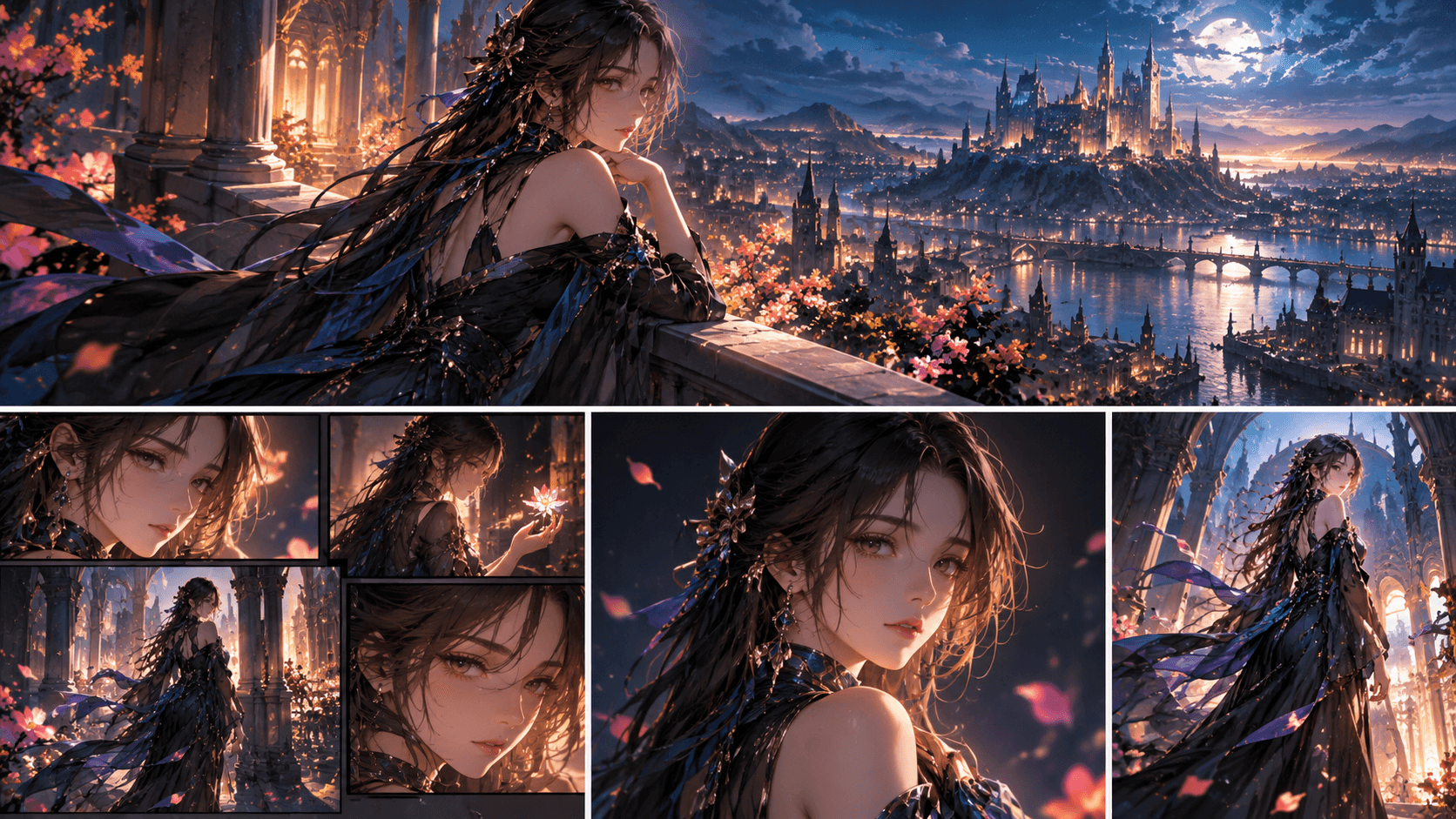
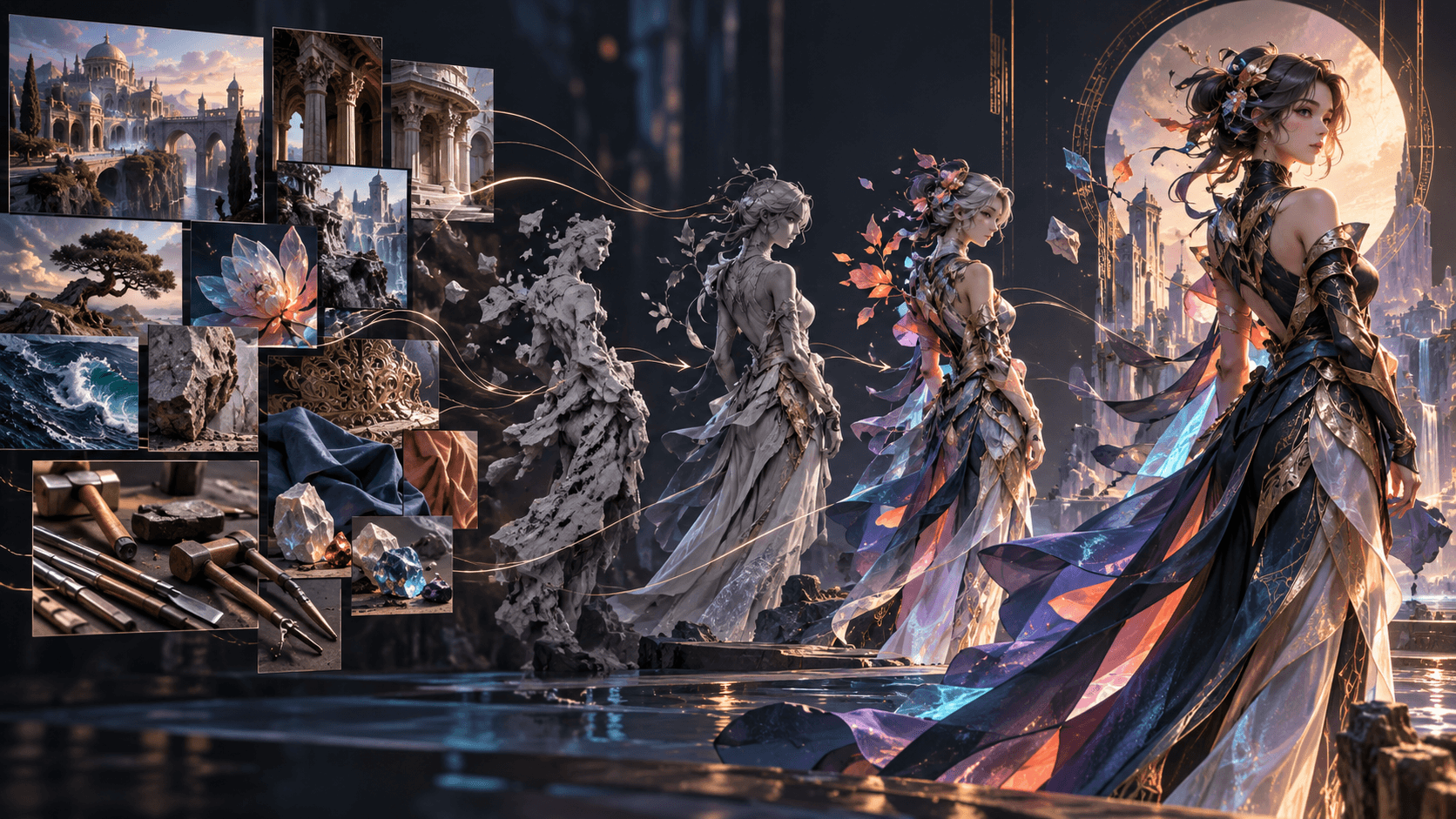
GPT Image 2.5 creates still images; Elser AI can carry an approved visual direction into story, character, storyboard, video, audio and editing stages. The clean workflow is not “animate any pretty image.” It is concept, continuity sheet, animation-ready keyframes, controlled motion and final assembly.
This article does not claim GPT Image 2.5 is natively integrated in Elser. It describes an asset handoff. Verify Elser's current upload options and model selector before production.
Step 1: Design an Original Character
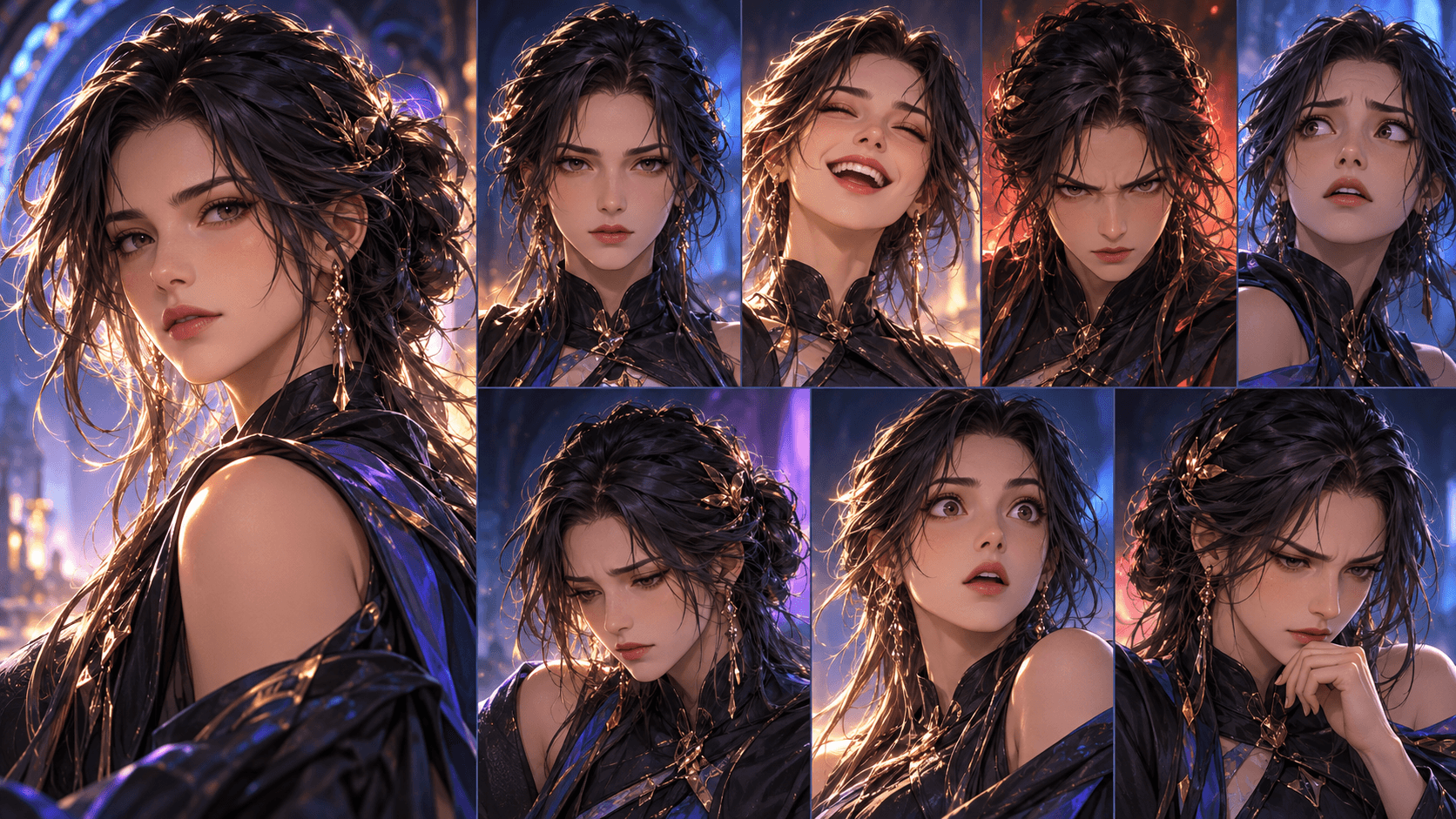
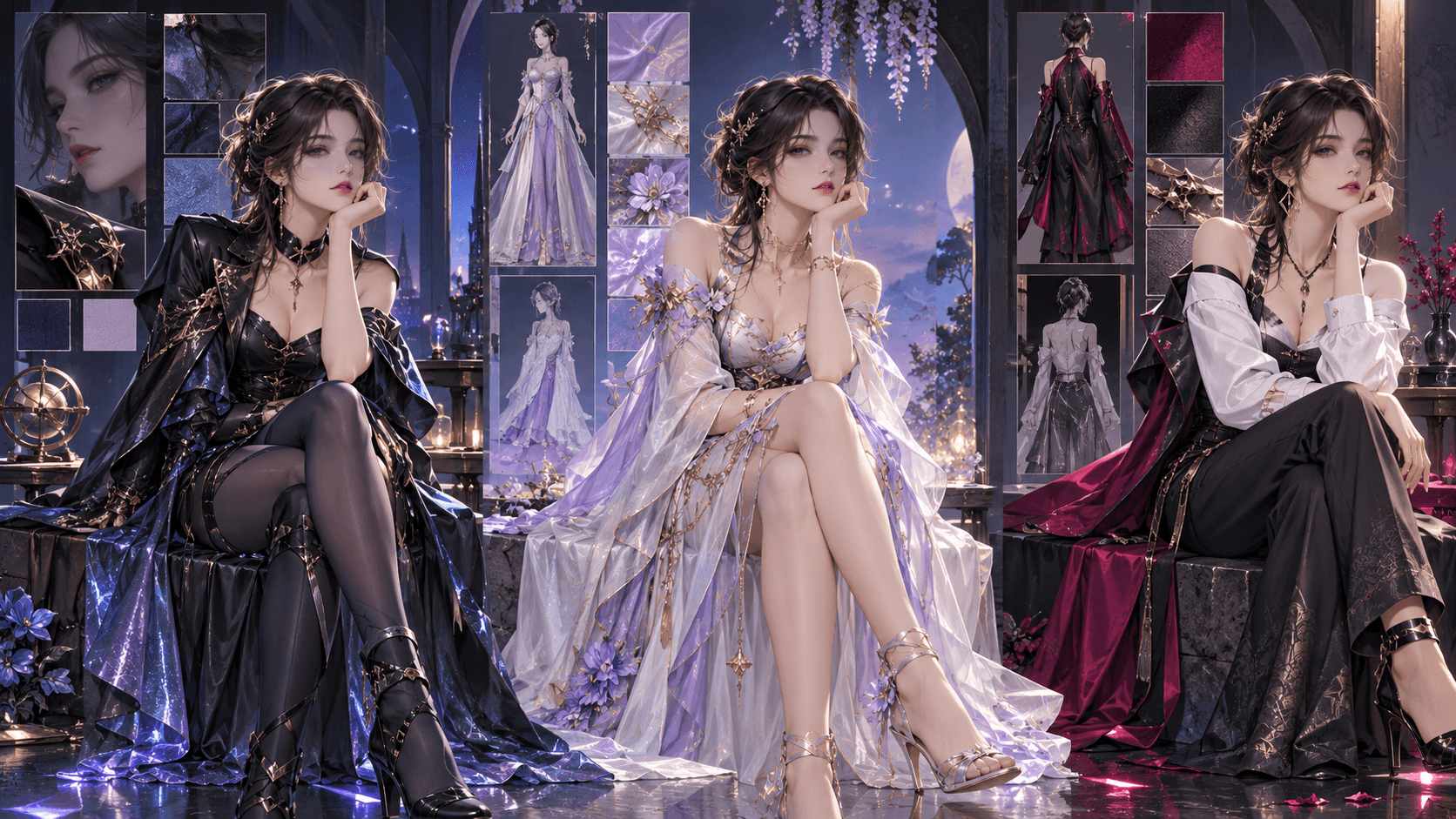
Use Sunburst or Flare to create a canonical sheet with neutral views, stable proportions, clear costume layers and one signature prop. Avoid copyrighted characters unless you own the required rights.
Step 2: Produce Animation-Ready Keyframes
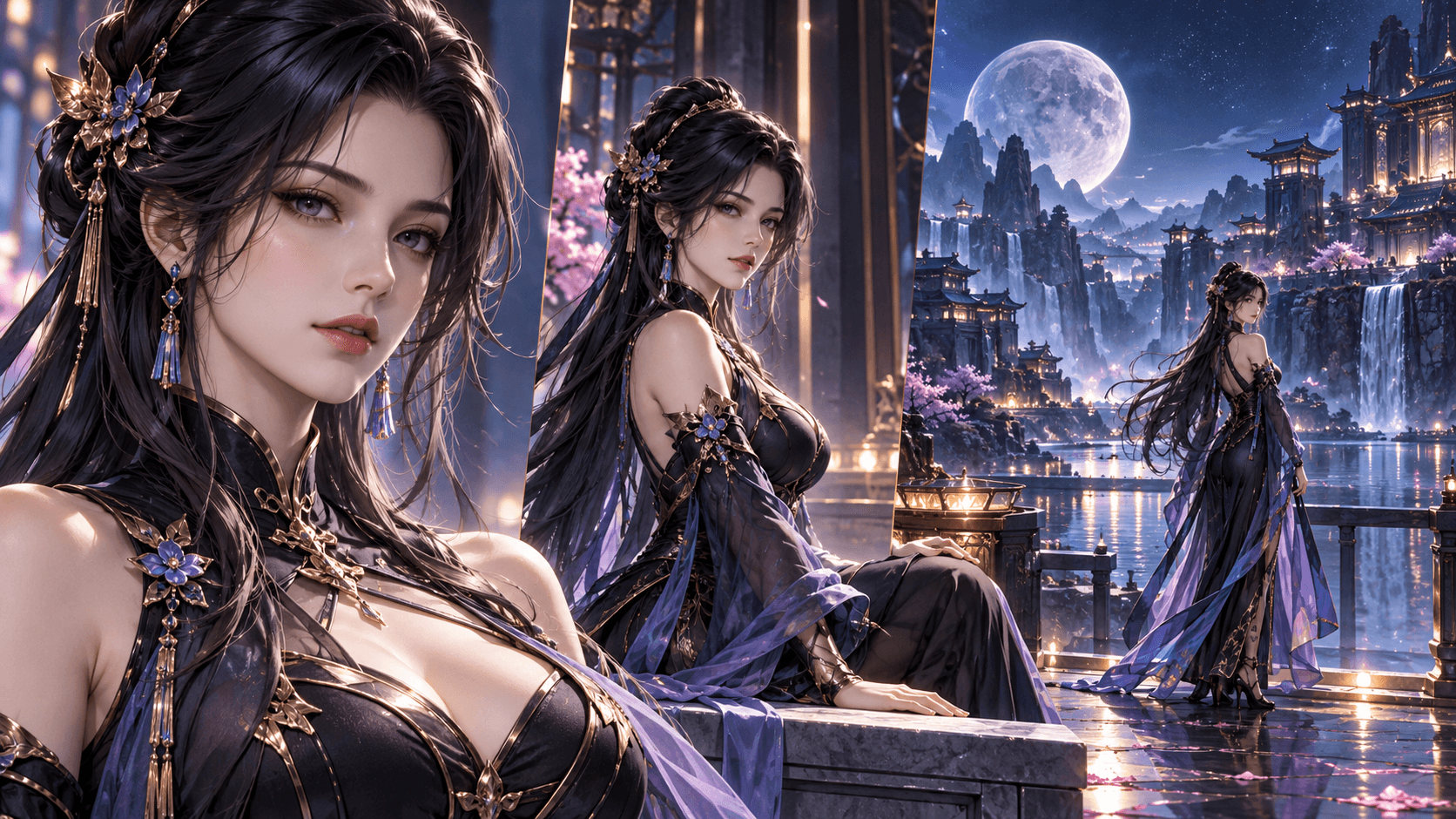
Generate a clean establishing shot, dialogue frame, action setup and reaction. Keep hands readable, foreground uncluttered and background geometry coherent. Match the target aspect ratio.
Step 3: Record the Handoff Package
Save model, prompt, references, size, quality, approved PNG/WebP, identity anchors, costume state and usage rights. Name files by scene and shot rather than “final-final-2.”
Step 4: Start the Elser Story
In Elser AI, begin from an idea or prepared script as appropriate. Edit the scene structure so every visual has a narrative job. Configure aspect ratio, style, pacing and audio direction before large-scale generation.
Step 5: Rebuild or Reference the Cast
Use the approved GPT Image 2.5 character as a visual source where Elser supports uploads. Confirm the live character design before storyboard work. Create named costume or timeline variants instead of changing the hero in individual prompts.
Step 6: Storyboard Before Motion
Map each shot to purpose: establish, reveal, decision, consequence. Compare the Elser board against approved keyframes. Fix geography, props and eye lines at the still stage.
Step 7: Generate Controlled Motion
Ask for one subject action and one motivated camera behavior. Protect identity, outfit, props and background. Short connected clips are easier to control than a complete fight in one request.
Step 8: Add Voice, Music and Sound
Use dialogue to reveal choice rather than narrate visible action. Establish room tone, then add music. Keep voices intelligible and confirm names or invented terms.
Step 9: Finish in Final Cut
Assemble scenes, trim dead time, preserve reactions and check the transition between every clip's last and first frame. Review once without sound for visual clarity and once audio-only for dialogue logic.
Continuity Checklist
- Face, hair, costume and prop match the approved character.
- Shot order preserves geography.
- Temporary damage persists until the story removes it.
- Motion does not add people or objects.
- Audio supports rather than explains unclear images.
- Export dimensions match the destination.
Build the Story Before Generating More Art
Write the episode objective, obstacle, decision and consequence. A beautiful character does not tell you which frames are needed. In Elser, choose the idea-based entry when you want help expanding a premise or follow the prepared-script route when scene order and dialogue are already fixed. Edit the resulting Storyline so each image has a specific job.
For a 45-second pilot, a useful beat sheet is:
0–5s: courier discovers the compass points backward.
5–15s: she tests it against the destination tower.
15–28s: cable breaks; rival appears at the entrance.
28–40s: courier chooses to return toward the storm.
40–45s: compass opens and displays her own missing portrait.
Now GPT Image 2.5 prompts can target the four or five critical frames instead of producing an unused gallery.
Create the GPT Image 2.5 Asset Package
Generate a canonical character sheet, location reference, signature prop and keyframes. Use Flare for rapid compositions and Sunburst when precision-sensitive work fails the standard. Keep prompts original and rights-cleared.
Every approved asset should include:
- Stable filename with character, scene and shot.
- Model and dated snapshot where relevant.
- Prompt, quality, size and references.
- Identity and costume state.
- Ownership or license information.
- Known weaknesses, such as an unreadable background sign.
Remove accidental text and fix final logos before handoff. Do not ask the animation stage to repair a flawed character sheet.
Configure the Elser Project
Choose aspect ratio based on distribution, not on whichever keyframe already looks best. For vertical shorts, compose important faces, props and captions inside mobile-safe areas. Select a coherent visual style and shot duration range. Decide whether narration, dialogue or mostly visual storytelling will carry the pilot.
Use Character Settings to establish recurring characters and named states. The upstream GPT Image 2.5 sheet is the visual specification; the live Elser character becomes the production asset. Compare them before generating storyboards.
Storyboard the Handoff, Shot by Shot
Use automatic storyboarding for quick exploration, manual control when the desired sequence is already known, and a more directorial workflow for precise composition when those options are available in the live product. Regardless of mode, check:
- Establishing geography.
- Correct character asset and costume state.
- Prop location and owner.
- Eye lines and screen direction.
- Clear visual change between consecutive shots.
- Space for any final subtitle.
The GPT Image 2.5 keyframe may guide the decisive composition, but do not force every shot to imitate a poster. Dialogue needs coverage; action needs orientation; reactions need time.
Write Motion Prompts from Approved Stills
Motion instructions should describe change over time:
Slow push-in. Mina raises the cracked compass from waist to eye level,
notices the needle turn backward, and shifts her gaze toward the bridge entrance.
Coat and hair move lightly in the wind. Preserve face, eye colors, compass,
bridge geometry and lighting. No additional people, objects or camera rotation.
Request one performance and one camera behavior. Break a complicated action into clips, then assemble it. Compare first, middle and last frames to the approved character and location references.
Build Dialogue and Sound Around the Cut
Record or generate voice after the rough shot duration exists. A line that reads well may not fit a three-second reaction. Trim exposition and let visual evidence carry information. Confirm pronunciation for names and invented vocabulary.
Add location sound before music: bridge cable strain, wind, distant machinery. Give recurring props a restrained motif. Music should change when the character's decision changes, not run at maximum intensity throughout.
Final Cut and Export Review
Watch the assembled episode four ways: silently for visual logic, audio-only for dialogue, at normal speed for emotion, and on the target phone for readability. Check the boundary between clips because character or background drift often appears at cuts.
Do not export merely because every generated shot is present. Remove shots that repeat information. Preserve a reaction if it turns action into meaning. End after delivering one payoff and opening one new question.
What This Workflow Does Not Guarantee
GPT Image 2.5 cannot guarantee perfect recurring-character consistency, exact typography or pixel-locked edits. Elser cannot make an unclear story compelling simply by adding motion. Neither tool guarantees virality, commercial rights or factual accuracy. Human review remains responsible for story, continuity, consent, licensing and final claims.
A Reusable Episode Template
After approval, preserve the Elser project settings, character asset names, location references, audio motifs and current story state. Start episode two from the last confirmed condition rather than a generic prompt. Reuse the canonical GPT Image 2.5 assets only where they remain accurate; create named variants when the story changes wardrobe or injury.
Publish with Accurate Attribution
Internally record which model produced each still and which Elser stage produced or modified each scene. Public disclosure requirements depend on channel and context, but the team should always retain provenance. Avoid promotional wording that implies a native technical integration when the workflow actually used exported files.
Choose the thumbnail from an approved story frame that communicates the same conflict as the title and opening shot. A disconnected piece of GPT Image 2.5 key art may win attention but weaken retention if the animated episode delivers a different character or promise.
FAQ
Is GPT Image 2.5 a video model?
No. Its documented output is image.
Is GPT Image 2.5 available inside Elser?
No public page confirming native 2.5 support was found at verification time. Check the live product.
Which model should create keyframes?
Use Flare for fast drafts and Sunburst when demanding image or edit quality is required.
Conclusion
The strongest cross-platform workflow treats still generation and animation as separate approval stages. Create a reusable original character with GPT Image 2.5, hand off documented assets, build the story and storyboard in Elser, then generate controlled motion and finish the sound and edit.