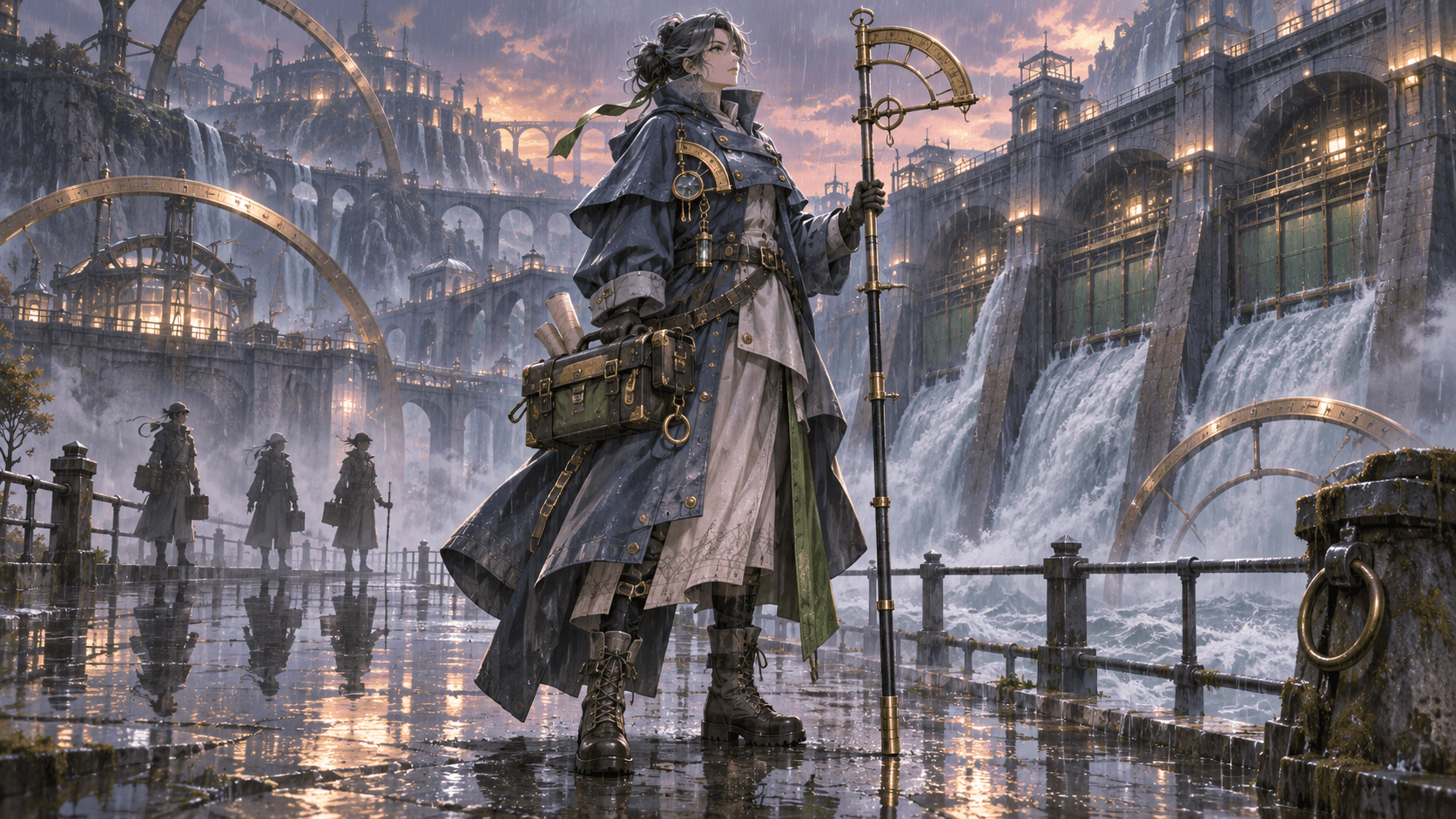
Grok Image-to-Video Guide: Prompts, Motion Controls and Common Problems
Image-to-video begins with a frame you already approve. That is its advantage and its constraint. The image locks the opening composition, but the model still has to infer depth, hidden body parts, object behavior, timing, and what should happen next.
Good results therefore start before the upload. Choose an image that can plausibly move, define a small performance beat, and write the prompt as direction for the next few seconds—not as a second description of the picture.
This guide reflects official xAI documentation available on September 18, 2026. Product controls and consumer-plan limits can change.
What Grok Image-to-Video Does
In standard image-to-video mode, the input image is pinned as the opening frame. The prompt describes the movement that follows. Current xAI documentation for Grok Imagine Video 1.5 also describes reference-to-video, optional reference audio, first-and-last-frame workflows, editing, extension, and native 1080p for supported image-to-video requests.
The difference matters:
- Starting image: determines the exact first frame.
- Reference image: guides identity, appearance, or style without necessarily becoming the first frame.
- Last frame: defines where the movement must land.
- Edit request: modifies an existing video rather than animating a still.
Consult the official xAI video generation guide for the current API fields and supported combinations.
Step 1: Select an Image That Can Survive Motion
The best source image is not always the most dramatic illustration. It is the frame with the clearest spatial information.
Prefer:
- one dominant subject;
- readable hands and limbs;
- clear separation between subject and background;
- a face large enough to preserve;
- consistent lighting;
- room around the direction of movement;
- no accidental text or watermark;
- a composition that could be the beginning of a shot.
Be cautious with:
- crossed hands over the face;
- hair covering both eyes;
- cropped feet when the character must walk;
- complex crowds;
- reflections that show a second version of the subject;
- extreme foreshortening;
- tiny props requiring precise finger contact;
- already-painted speed lines that conflict with new motion.
If the image was created with an AI image generator, correct major anatomy, costume, and object errors before animation. Video will not reliably repair a bad canonical frame.
Step 2: Decide What Is Allowed to Change
Divide the frame into three categories:
Locked
Details that must remain stable, such as face, hair, uniform, product label, key prop, or room layout.
Moving
The primary performance: turning, looking up, taking a step, raising a hand, opening a door, or reacting.
Responding
Secondary motion caused by the action: hair settling, fabric following momentum, light shifting, dust lifting, leaves moving, or a reflection changing.
This produces a clean direction note:
Locked: face, short white hair, blue coat, silver pendant, station architecture.
Moving: she looks toward the arriving train and takes one step back.
Responding: coat hem and loose hair move in the train's airflow.
Step 3: Write a Motion-First Prompt
Avoid repeating details already visible unless they are identity anchors. Begin at the current state and describe what changes.
Weak:
Beautiful anime girl, silver hair, blue coat, cinematic, masterpiece, amazing movement.
Directed:
She notices movement beyond the platform, turns her eyes first, then slowly rotates her
head about thirty degrees. Her right hand tightens around the bag strap. A passing train
creates a brief wave through her coat hem and loose hair. Locked medium shot with a subtle
push-in during the final second. Preserve her face, hairstyle, coat, pendant, and background
architecture. One continuous shot, no new people, no scene cut.
The second version defines performance, sequence, camera, physical response, and continuity.
Step 4: Separate Camera Language from Subject Movement
Use recognizable camera instructions:
- locked camera;
- slow push-in;
- slow pull-back;
- lateral tracking;
- gentle orbit;
- tilt upward;
- handheld micro-movement;
- rack focus between named subjects.
One camera move is usually enough. Combining orbit, zoom, crane, shake, and rapid pan can force the model to reinterpret the whole frame.
For character consistency, begin with a locked camera. Once performance works, test a subtle camera version.
Step 5: Use Timing Instead of Adjective Piles
Sequence the action in simple beats:
First two seconds: he remains still, listening.
Middle: he raises the lantern to shoulder height.
Final two seconds: warm light reveals the doorway; he holds the final pose.
Timing makes “dramatic” measurable. It also creates a stable final frame for editing.
Six Prompt Patterns You Can Adapt
Subtle portrait
She breathes naturally, blinks once, and shifts her gaze from the window to camera.
Loose hair responds slightly to indoor airflow. Locked close-up, soft continuous light,
preserve facial structure and earrings, no speech, no scene change.
Anime action preparation
He lowers his center of gravity and draws the sword halfway, stopping before the attack.
The coat follows the body with believable delay. Slow lateral camera slide, restrained
energy particles behind the blade, preserve face, costume, weapon shape, and environment.
Product reveal
The camera makes a slow clockwise arc around the product while the object remains fixed.
One narrow highlight travels across the metal edge. Preserve label text and geometry.
Clean studio background, no hands, no transformation, no added objects.
Environmental shot
Morning fog moves slowly through the existing trees. The hanging signs sway at different
rates according to distance. The camera pushes forward along the empty path. Preserve the
building layout and color palette. No people appear.
Dialogue reaction without generated speech
She listens to someone outside frame, briefly looks down, then gives a small reluctant nod.
Natural breathing and minimal shoulder movement. Locked medium close-up, preserve face and
uniform, quiet room tone, no lip movement and no cut.
First-to-last-frame transition
Move from the supplied opening frame to the supplied final frame through one natural turn.
The character steps around the table rather than passing through it. Maintain costume,
face, table geometry, lighting direction, and screen direction throughout.
The last pattern relies on controls described in the current xAI API documentation; it may not appear identically in every consumer interface.
Diagnose the Failure Before Regenerating
Identity drift
Likely causes include a small face, large rotation, occlusion, changing light, or too much action. Use a clearer source, smaller movement, shorter duration, and fewer simultaneous effects.
Rubber-like body movement
The requested action may require hidden anatomy the frame does not establish. Choose a source with visible joints or change the shot to a close performance beat.
Unwanted zoom
State “locked camera, fixed framing.” Remove cinematic terms that imply movement and specify that only the named subject parts move.
Motion is too weak
Replace “subtle animation” with a sequence and distance: two steps, hand to shoulder height, head turns thirty degrees, or curtain moves once after the door opens.
Background melts or changes
Reduce camera parallax and large movement. Explicitly preserve architecture. Complex backgrounds may need to be separated into a different shot.
Hands or props fail
Avoid intricate manipulation in a single generation. Start before contact, end after contact, or cut between setup and result. Give the object a clear shape in the source image.
The ending cannot connect to another shot
Ask the character to hold a stable final pose and maintain screen direction. Design the next shot before generating the current one.
Character Consistency Across Several Clips
Image-to-video preserves an opening frame, not an entire production bible. For a sequence:
- approve a canonical character reference;
- maintain fixed identity language;
- generate each starting frame from the same approved references;
- keep wardrobe and props documented;
- plan screen direction and shot size;
- animate one shot at a time;
- compare every result with the canonical sheet, not only the previous generated clip.
If you need to create the still image and animate it in one place, Elser AI connects anime-oriented image generation, OC design, comic workflows, and image animation. Its image animator supports uploading or generating an image, then directing motion with model and camera options. That workflow is useful when the still itself needs revision before animation.
Cost and Draft Strategy
The xAI API charges by generated duration and resolution, plus supported media inputs. Current official pricing lists different per-second rates for 480p, 720p, and 1080p. Consumer Grok uses plan allowances rather than the API price table.
Draft efficiently:
- test one representative shot;
- use the lowest acceptable draft resolution;
- keep duration short;
- avoid changing five variables at once;
- approve motion before producing a final-resolution take;
- record the prompt and settings for every accepted clip.
See xAI API pricing for current rates rather than relying on a cached article.
FAQ
Does Grok use my uploaded image as the first frame?
In standard image-to-video mode, yes. Reference-to-video is different: reference images can guide identity or appearance without necessarily serving as the opening frame.
Should I describe the image again?
Describe only the details that must remain stable. Spend most of the prompt on action, camera, timing, environment response, and constraints.
Can Grok use a first and last frame?
Current Grok Imagine Video 1.5 API documentation includes a last_frame option and supports combinations that pin both first and last frames. Interface availability can differ.
Can Grok generate audio with image-to-video?
Current API documentation describes generated audio and supported preset voices. You can also request silent output in the API. Check the active consumer interface for its available audio controls.
Why does a still character change during animation?
The model must infer unseen views and transitional anatomy. Large movement, occlusion, complex light, or an unclear source makes that inference harder.
Can I animate copyrighted artwork?
Technical ability is not permission. Use images you own or are authorized to modify, and check platform terms and applicable law before publishing or commercializing the result.
Conclusion
Grok image-to-video works best when the still image already solves identity and composition. Give the model one performance beat, one camera idea, a few continuity anchors, and a stable landing point. When a result fails, diagnose whether the problem came from the source frame, action, camera, timing, or contact—not from a lack of decorative prompt words.