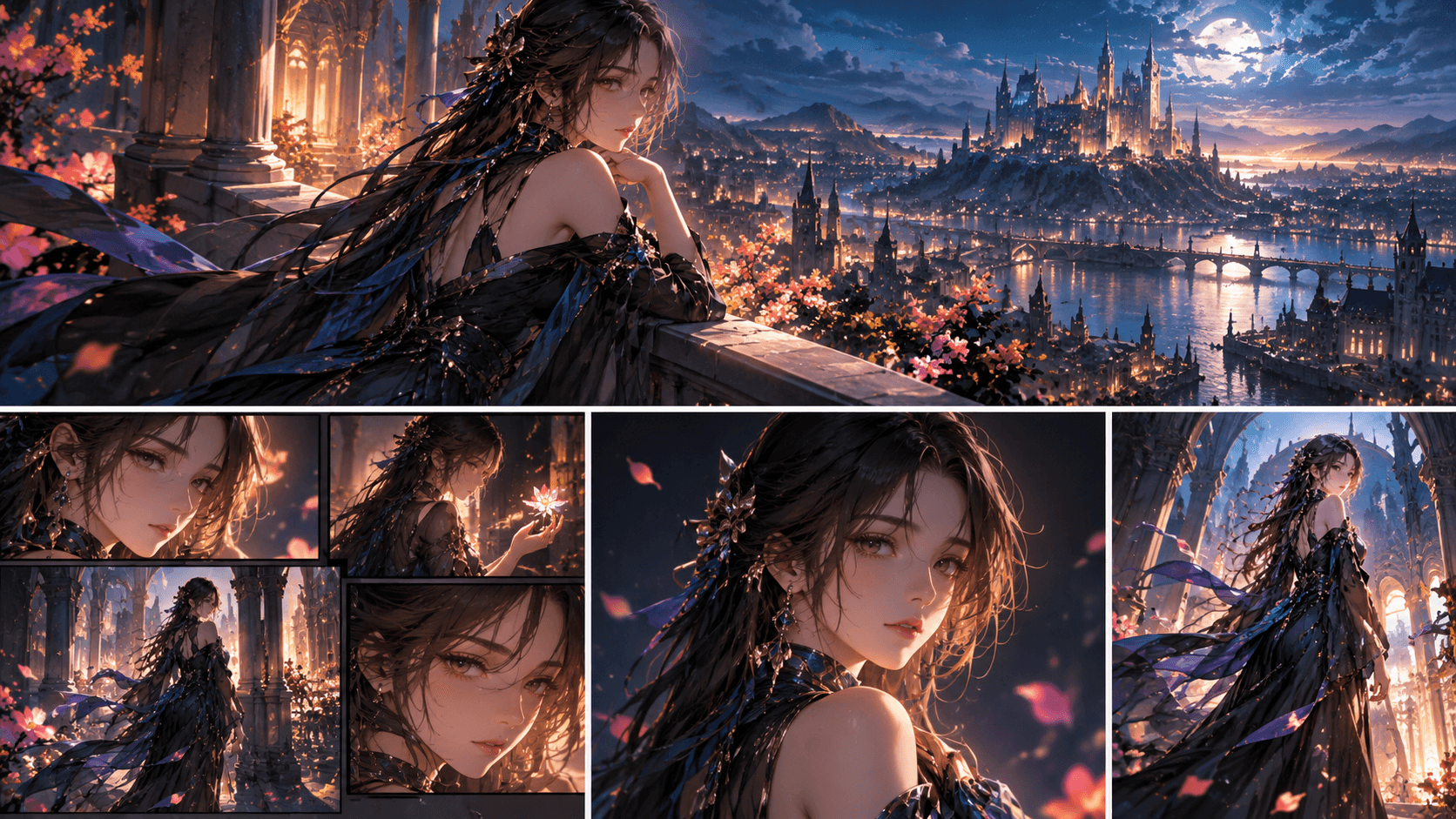
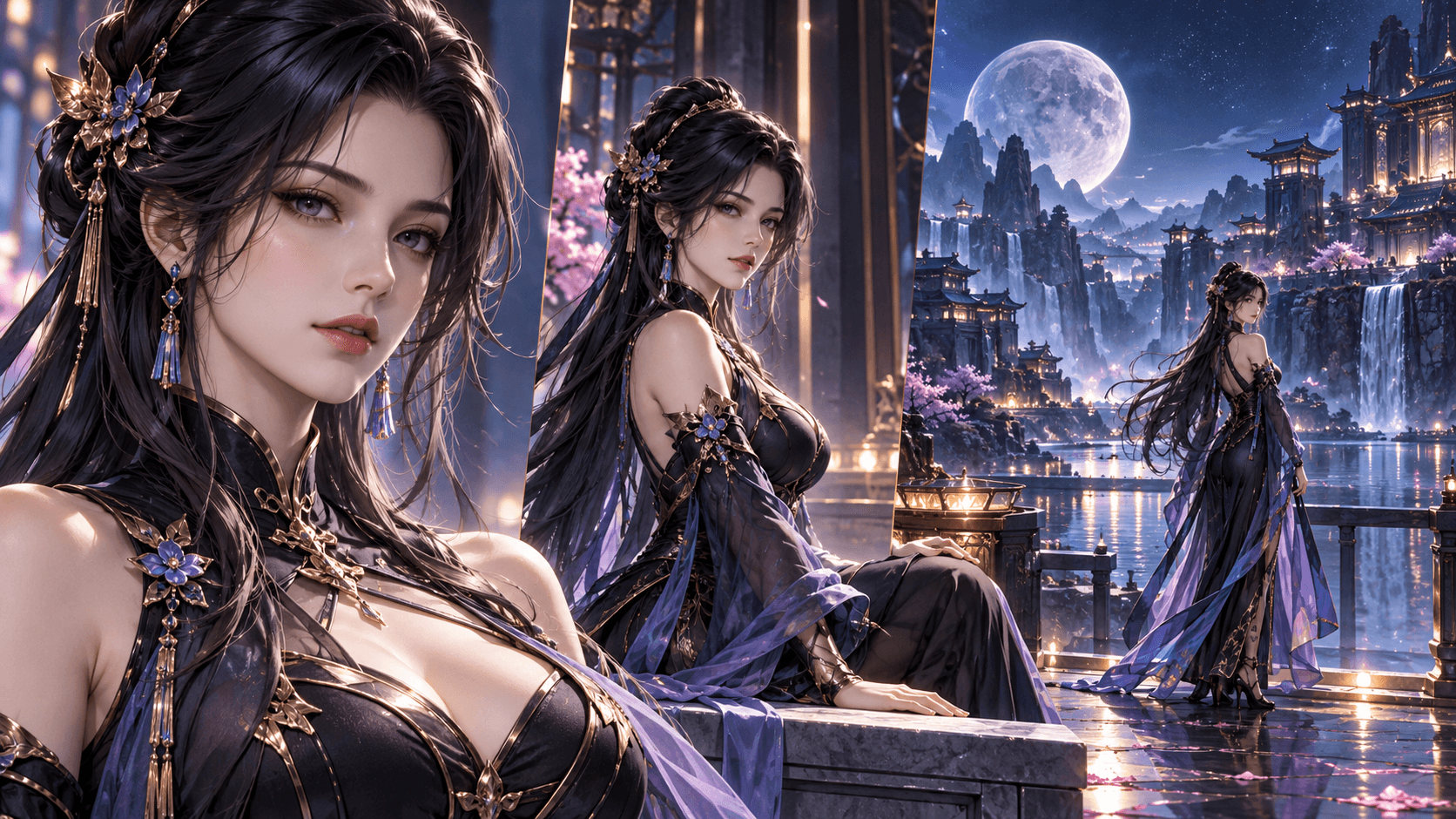
How to Create Anime from Text with AI in 2026: The Simple Way
Let me be clear upfront: In 2026, no tool can generate a full 22-minute anime episode from text. That‘s still years away. But you can create short anime-style clips – 5 to 30 seconds – that look like they came from a real show.
The workflow is simple: Use Elser‘s comic generator to create consistent character panels, then add motion and voice in a free video editor. In this guide, I‘ll show you exactly how to create anime from text with AI using tools that actually exist today.
What “Anime from Text” Means in 2026
Realistic expectations:
- 5-30 second clips
- Static characters with camera motion (pan, zoom)
- Lip-sync (if you add voiceover)
- No complex action (running, fighting, multiple limbs)
Unrealistic expectations (for now):
- Full-length episodes
- Characters walking naturally
- Complex scene transitions
- Consistent backgrounds across cuts
Think of it as “animated manga” rather than Studio Ghibli. For social media, trailers, and character introductions, it‘s perfect.
The Step-by-Step Workflow
Step 1: Create Your Character in OC Maker
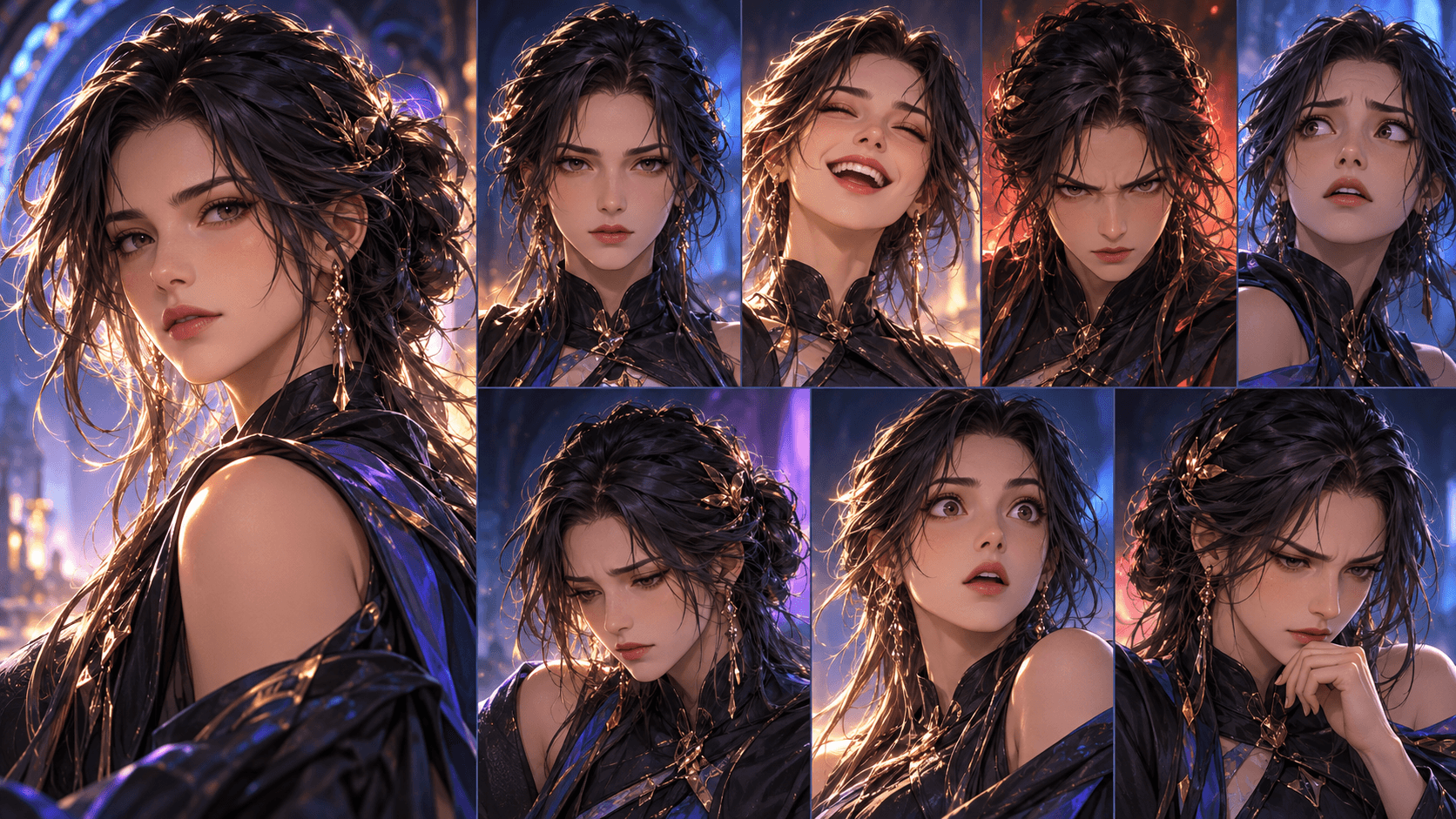
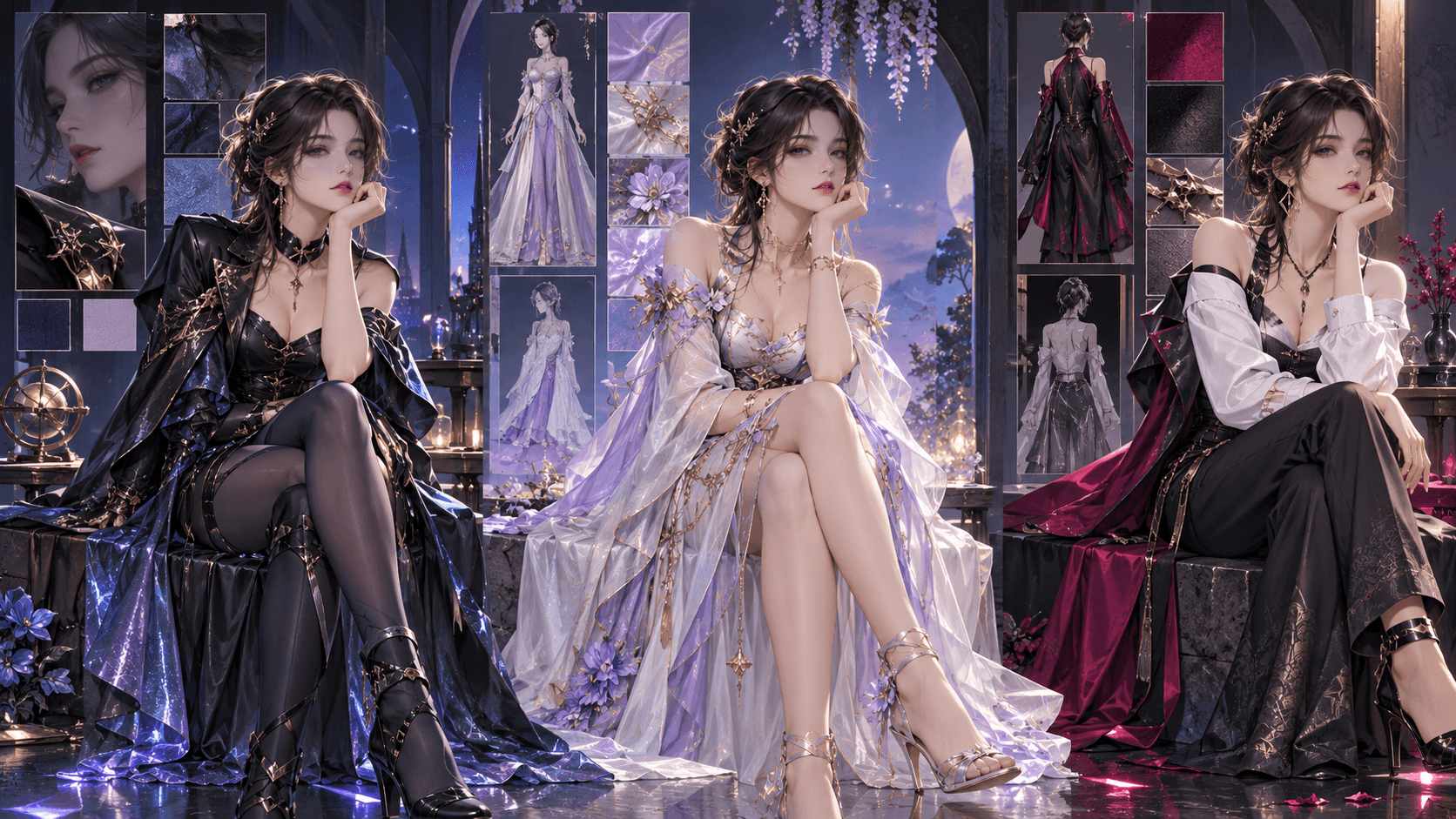
Open Elser‘s OC Maker. Choose a template (Anime OC Maker, Fantasy OC Maker, or any fandom style). Describe your character: “Teenage girl, blue hair, red eyes, wears a school uniform, looks determined.”
Generate and lock the character. This gives you a consistent face for all your panels.
Step 2: Generate a Comic Panel Sequence
Go to Elser‘s Comic section. Write a short story that describes a simple action. For anime-style clips, keep the action basic:
- “A girl looks up at the sky. She smiles. A tear rolls down her cheek.”
- “A boy raises his fist. Lightning strikes behind him. He shouts.”
- “A villain laughs. He turns to the camera. His eyes glow red.”
Select your locked character. Choose style (Japanese Manga → Shonen or Shojo). Pick model (GPT Image 2 for test, Nano Banana Pro for final). Set Panel Count to 3 or 4 (one panel per action). Generate.
Step 3: Export Individual Panels
If you used Strip Comic, you‘ll get one image with all panels. Crop it into separate panel images using any image editor (Photoshop, GIMP, even Preview on Mac). Save as PNG.
Step 4: Add Motion in a Free Video Editor
Open CapCut or Canva. Import your panels as separate layers. Set each panel duration to 2-3 seconds. Add:
- Slow zoom in or out (Ken Burns effect)
- A subtle pan if the character looks left/right
- Screen shake for impact (optional)
Do not add complex motion – the AI panels aren‘t designed for it, and it will look janky.
Step 5: Add Voiceover or Music
For a true “anime” feel, add a voiceover. You can:
- Record your own voice (free)
- Use Elser‘s AI voice generator (in a separate section) to create dialogue
Sync the voiceover to the panels. If a character is speaking, try to match the mouth area – but since your panels have static mouths, it‘s better to use narration instead of lip-sync.
Add background music (royalty-free anime-style tracks from YouTube Audio Library). Keep the music volume low so voiceover is clear.
Step 6: Export as MP4
Export at 1080p, 30fps. Share on social media or use as a trailer for your comic.
Real Example: 10-Second Anime Clip
I wanted to test this. Using Elser:
- OC Maker: Created “Rin” (Anime OC Maker, black hair, red scarf)
- Comic: 3 panels – Rin looks up, Rin smiles, Rin closes her eyes
- Model: GPT Image 2
- Output: 3 panels in a strip
Cropped the panels. Imported into CapCut. Panel durations: 3 seconds each (9 seconds total). Added slow zoom on each panel. Added piano music and a sigh sound effect at the end.
Exported. The result looked like a melancholy anime ending sequence. No complex animation – just camera motion and timing. It worked.
Why This Isn‘t “Real” Animation (And Why That‘s Okay)
What I just described is a motion comic, not full animation. The characters don‘t walk, their mouths don‘t move with the voice, and there are no in-between frames.
But for social media, character reveals, and comic trailers, motion comics are more than enough. Audiences are used to them. Many popular webtoon promotions use exactly this style.
When Will True Text-to-Anime Arrive?
Realistic prediction: 2028-2029. The technology is advancing fast, but generating consistent characters across hundreds of frames with natural motion is still a research problem. Elser and other companies are working on it, but they‘re not shipping it yet.
Until then, the comic-to-motion workflow is your best bet.
Using Nano Banana Pro for Better Quality
If you want your anime clip to look crisp even when zoomed in, use Nano Banana Pro instead of GPT Image 2 when generating your comic panels. The 2K/4K resolution survives zooms without pixelation.
Tips for Convincing Anime-Style Clips
- Use cinematic aspect ratio: 16:9 or 2.35:1
- Add subtitles: Even if there‘s voiceover, subtitles increase engagement
- Use anime-style music: Search for “anime piano” or “emotional anime OST”
- Keep it short: 10-15 seconds is ideal for social media
- End with a hook: A question, a logo, or “to be continued”
Your First Anime Clip
You don‘t need special software or skills. Just Elser for the art, CapCut for the motion, and 20 minutes.
Start at https://www.elser.ai/. Create a character with OC Maker. Generate a short comic sequence. Then follow the steps above. Your first anime-style clip is closer than you think. Free to try.