How to Make AI Video Transitions Smoother
AI video transitions often fail in a very specific way: each individual clip looks good, but the video as a whole feels stitched together. A character appears in one scene, then reappears in the next with a slightly different face. A camera pushes forward in one shot, then suddenly resets to an unrelated angle. Lighting changes without motivation. The background structure shifts. The emotional rhythm disappears.
The result is not exactly “bad quality.” It is discontinuity.
This is one of the biggest differences between a generated clip and a directed video. A generated clip can survive as a standalone visual moment. A directed video needs flow. It needs the viewer to feel that one shot logically leads to the next. Smooth transitions are not just an editing detail; they are the invisible structure that makes AI video feel like a real scene instead of a playlist of unrelated generations.
The reason transitions are difficult is that most AI video clips are generated independently. Unless you deliberately preserve identity, motion, lighting, and camera logic, the model does not automatically know what must carry over from one scene to the next. This is why transition quality depends less on a single prompt and more on production planning.
Think in Sequences, Not Clips
The first step is to stop thinking clip by clip. A smooth AI video transition begins before generation, not after. You need to design the relationship between scenes.
Instead of writing five isolated prompts, write a sequence plan. For example, if your video shows a character entering a room, noticing something, and reacting, do not treat those as three unrelated clips. Treat them as one continuous event broken into three shots.
Scene one establishes the character entering. Scene two moves closer as the character sees the object. Scene three cuts to a close-up reaction. This sequence works because the camera, emotion, and action evolve logically.
A weak workflow says:
“Generate a character walking into a room.”
“Generate a character looking surprised.”
“Generate a close-up cinematic shot.”
A stronger workflow says:
“Shot 1: same character enters the room from the left, medium-wide shot, warm interior lighting.”
“Shot 2: same character pauses and looks toward the table, medium shot, same lighting, camera slowly pushes in.”
“Shot 3: same character close-up reaction, same outfit and face, warm light from the same direction.”
The difference is continuity logic. The second version tells the AI that the shots belong to the same moment.
Use Motion Bridges Between Shots
A motion bridge is a movement that connects two clips. It can be a character movement, camera movement, object movement, or environmental movement. The goal is to prevent the viewer from feeling a hard reset.
If a character turns their head at the end of one shot, the next shot can begin with the character already completing that turn. If the camera pushes toward a door, the next shot can continue inside the room. If a hand reaches toward an object, the next shot can show the object in close-up. These small motion bridges create the feeling of continuity even when the clips are generated separately.
AI video creators often skip this and rely on editing cuts alone. But if the generated content does not share motion logic, no transition effect can fully fix it. A crossfade between two unrelated generations still feels unrelated.
Useful transition patterns include doorway transitions, match cuts, object close-ups, eye-line cuts, camera push-throughs, and action continuations. A doorway transition might move from outside to inside. An eye-line cut shows what the character is looking at. A match cut preserves a shape or pose between scenes. An object close-up can bridge location changes while keeping visual focus stable.
Prompt example:
“Continue the motion from the previous shot. The same character finishes turning their head toward the glowing object on the table. Keep the same outfit, face, lighting direction, and room style. Camera slowly pushes in from the same direction.”
This is much stronger than asking for a new generic reaction shot.
Keep Lighting and Color Consistent
Lighting is one of the most overlooked causes of rough transitions. Even if the character remains stable, a sudden lighting change can make the cut feel wrong. In real filmmaking, lighting changes usually have motivation: moving outdoors, entering a darker room, sunrise, screen glow, firelight, neon signs. In AI video, lighting often changes simply because the prompt changes.
To make transitions smoother, define a lighting language for the whole sequence. If the scene is warm and cozy, keep warm light across shots. If the scene is a neon cyberpunk street, maintain blue-magenta reflections. If it is a horror scene, keep low-key lighting and directional shadows.
When lighting must change, make it gradual or motivated. For example, a character opens a door and bright daylight enters. A screen turns on and casts blue light on the face. A sunset scene becomes darker as the camera moves. These motivated changes feel intentional.
In your prompts, repeat lighting information:
“Same warm window light from the left side.”
“Same blue neon backlight and soft magenta reflections.”
“Same overcast daylight and muted color palette.”
This kind of repetition may feel boring when writing prompts, but it helps create visual stability.
Preserve Character and Environment References
Smooth transitions depend on stable identity. If the character changes between clips, the transition breaks. If the room layout changes, the viewer feels lost. This is where reference-based workflows become important. Modern AI video systems increasingly support reference images or subject-preserving workflows, such as Runway Gen-4’s reference approach and Google Veo 3.1’s use of images or ingredients to guide generated content.
In practical terms, you should preserve two types of references: character and environment. The character reference keeps the face, outfit, body proportions, and style stable. The environment reference keeps the location recognizable. If your video takes place in a classroom, café, spaceship, office, or fantasy village, generate or upload a clear reference image and use it consistently.
Elser AI is useful here because it lets creators build from visual assets rather than isolated text prompts. You can create or upload a character reference, generate scene variations, and maintain a more stable visual direction across clips. If your AI videos feel like separate pieces instead of one story, register on Elser AI and try building a sequence from one character reference and one environment direction. That workflow alone can make transitions feel cleaner.
Match Camera Language Across Scenes
Camera continuity is just as important as subject continuity. If one shot uses a slow push-in and the next uses a fast orbit, the transition feels abrupt unless the story demands it. Camera movement should have rhythm.
For smoother transitions, keep camera movement compatible. A slow push-in can lead to a close-up. A pan can reveal the next subject. A tracking shot can follow a character from one space to another. A static shot can cut to another static shot when the emotion is calm.
Think of camera movement as grammar. If every sentence uses a different grammar system, the video becomes hard to read. A sequence should have a consistent camera language unless a shift is intentional.
Prompt example:
“Camera continues the slow push-in from the previous shot, moving closer to the character’s face. Same lighting, same character, same outfit, same room. The transition should feel continuous and cinematic.”
This tells the model that the camera is not random decoration. It is part of the transition.
Use Shorter Shots for Better Control
Long AI video clips are harder to control. If you ask for too much action inside one generation, the model may drift. Shorter shots are easier to direct and easier to connect.
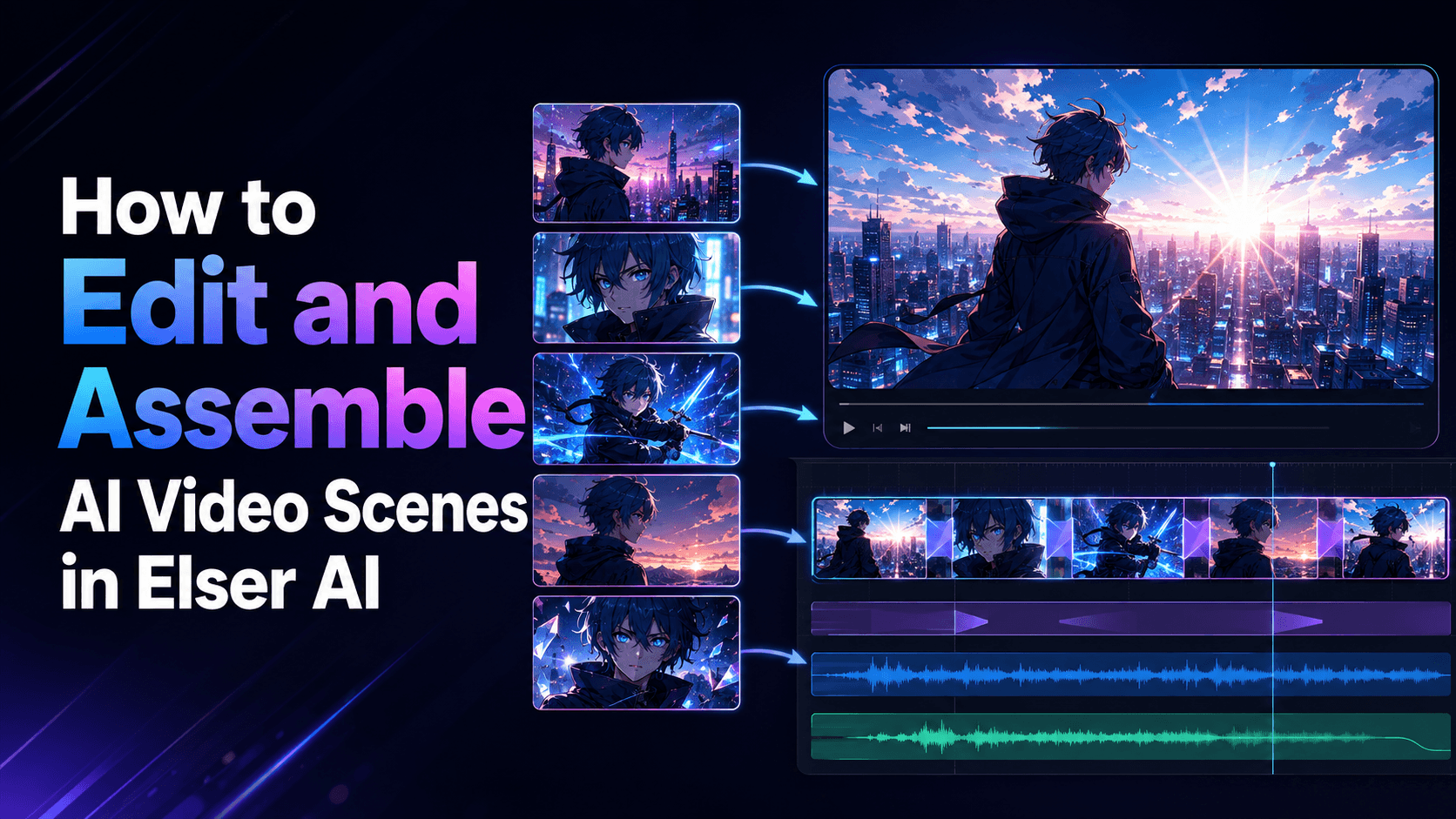
A smooth AI video can be built from several short controlled clips rather than one long unstable generation. A 20-second video might include six shots of three to four seconds each. Each shot has one clear purpose: establish, approach, reveal, react, escalate, resolve.
This is how real editing works. Professional videos are not usually one continuous camera move. They are assembled from purposeful shots. AI video benefits from the same thinking.
In Elser AI, you can use this shot-based approach to create controlled segments, then build a more coherent final video. Instead of trying to generate a full story at once, generate the story as a sequence.
Final Thoughts
Smooth AI video transitions are not created by adding fancy crossfades. They are created by continuity planning. The viewer needs to feel that character, motion, lighting, camera, and environment carry forward from one shot to the next.
The best workflow is simple but disciplined: plan scenes as a sequence, use motion bridges, preserve references, repeat lighting language, align camera movement, and keep shots short enough to control.
If your AI videos currently feel choppy or disconnected, start with Elser AI and build a three-shot test: one character enters a space, notices something, and reacts. Use the same character reference, same lighting, and compatible camera movement across all three shots. Once that works, you can scale the method into longer AI videos, anime scenes, product ads, trailers, and social content.
Smooth transitions are not magic. They are continuity made visible.