How to Animate an Image with AI: A Beginner’s Image Animator Guide
An AI image animator predicts how a still frame might change over time. It can add facial performance, body movement, camera motion, weather, cloth response, or environmental life. It cannot know your intention unless you direct the change.
Beginners often describe the image again and add “make it move.” A stronger workflow identifies what stays fixed, what moves first, what responds, and where the shot ends. That makes the result easier to review and revise.
This guide applies to portraits, anime art, OCs, product images, landscapes, concept art, and social content.
Understand What the Model Must Invent
A still image provides two-dimensional evidence. Animation may require information outside it:
- the back of a person who turns;
- the floor beneath cropped feet;
- how clothing is constructed under an arm;
- the side of a product hidden from view;
- background geometry revealed by a camera move;
- what an object looks like after it opens;
- how hair and fabric respond to force.
The more unseen information your request requires, the more variation and distortion you should expect. Work with the evidence in the source image whenever possible.
Step 1: Prepare the Source Image
Inspect at full size.
For portraits
- face large and sharp;
- both eyes readable when identity matters;
- no hand covering important features;
- hair separated from background;
- enough shoulder and torso information for movement.
For full-body characters
- hands, feet, and joints visible;
- ground plane understandable;
- costume layers connected correctly;
- action has room in its intended direction.
For products
- logo and label already correct;
- edges and materials clean;
- reflections consistent;
- object separated from background;
- camera movement will not reveal an unknown back side unless acceptable.
For landscapes
- clear depth layers;
- stable horizon and architecture;
- environmental elements that can move independently;
- no tiny people or text likely to mutate.
Correct obvious defects before animation. Upscaling can improve readability, but it does not replace fixing anatomy, typography, or geometry.
Step 2: Assign Motion by Layer
Think like a simple effects compositor.
Primary layer
The main subject action: looks up, walks, opens a hand, rotates the product, or approaches camera.
Secondary layer
Natural follow-through: hair, coat, shadow, reflection, loose paper, water, foliage.
Camera layer
Locked, push, pull, slide, tilt, orbit, or handheld movement.
Atmosphere layer
Rain, fog, dust, light rays, embers, or subtle exposure change.
Do not activate every layer at maximum intensity. If subject performance is important, keep camera and atmosphere restrained.
Step 3: Write the Prompt as Direction
Use this structure:
Current state: [what is already happening]
Primary action: [one clear change]
Secondary response: [physical follow-through]
Camera: [one movement or locked]
Timing: [sequence and final hold]
Preserve: [identity, object, text, geometry]
Avoid: [high-impact failure only]
Portrait example:
The subject begins still, looking past camera. She slowly shifts her gaze toward the lens,
blinks once, and gives a small restrained smile. Loose hair responds gently to indoor air.
Locked close-up with no zoom. Preserve facial proportions, freckles, earrings, and green
jacket. Hold the final expression for one second. No speech, new objects, or background change.
Product example:
The bottle remains fixed while the camera makes a slow fifteen-degree clockwise arc.
A narrow highlight moves across the glass and settles along the right edge. Preserve the
exact label, cap geometry, liquid color, and background gradient. No hand, splash, text
change, or transformation.
Step 4: Pick the Right Kind of Motion
Natural micro-motion
Best for profile images, art reveals, and loops. Use breathing, blinking, gaze, fabric settling, water reflection, or a very slow camera push.
Performance motion
Best for character storytelling. Direct intention: hesitation before reaching, relief after recognition, or guarded attention toward a sound.
Camera-led motion
Best for product shots and environments. Keep the subject stable while parallax or light creates change.
Transformational motion
Best for deliberate effects such as seasons changing, sketch becoming color, or material transformation. Expect more visual reinterpretation. Use it when change is the point, not when consistency is essential.
Action motion
Walking, dancing, combat, sports, and complex hand interaction demand clear anatomy and often work better when divided into short beats.
Step 5: Control Camera Movement
Camera motion changes what the model must invent.
- Push-in: relatively safe; increases emotional focus.
- Pull-back: reveals more environment and therefore more invented detail.
- Lateral track: needs depth separation for parallax.
- Orbit: reveals unseen sides of subject and background.
- Tilt: works when vertical composition contains enough information.
- Handheld: can add energy but may hide structural instability rather than solve it.
If the model moves the camera when you do not want it, write “locked camera, fixed framing, only the named subject parts move.”
Step 6: Generate and Review Systematically
Use a repeatable checklist:
Identity
- same face and age presentation;
- same hairline and distinctive marks;
- no duplicated jewelry or costume parts.
Mechanics
- limbs bend plausibly;
- hand-object contact is understandable;
- feet do not slide without intention;
- fabric follows rather than leads body motion.
Camera
- framing matches request;
- no unwanted zoom or cut;
- horizon and architecture remain stable.
Continuity
- important text and logos remain correct;
- props do not appear or vanish;
- lighting direction does not reverse accidentally;
- final frame can connect to another shot.
Record which category failed. Then change one variable.
Common Image Types and Prompt Strategies
Anime or OC artwork
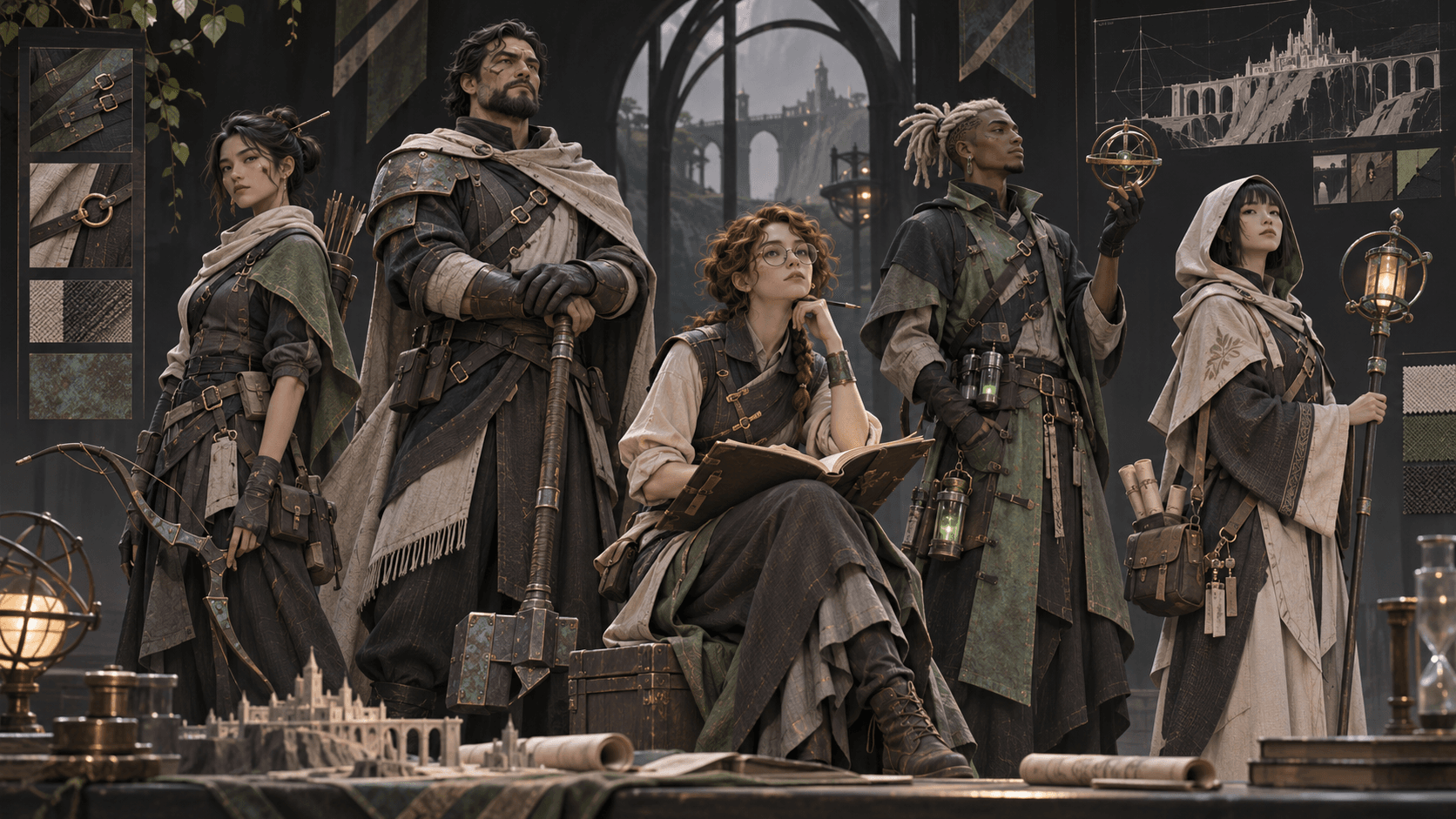
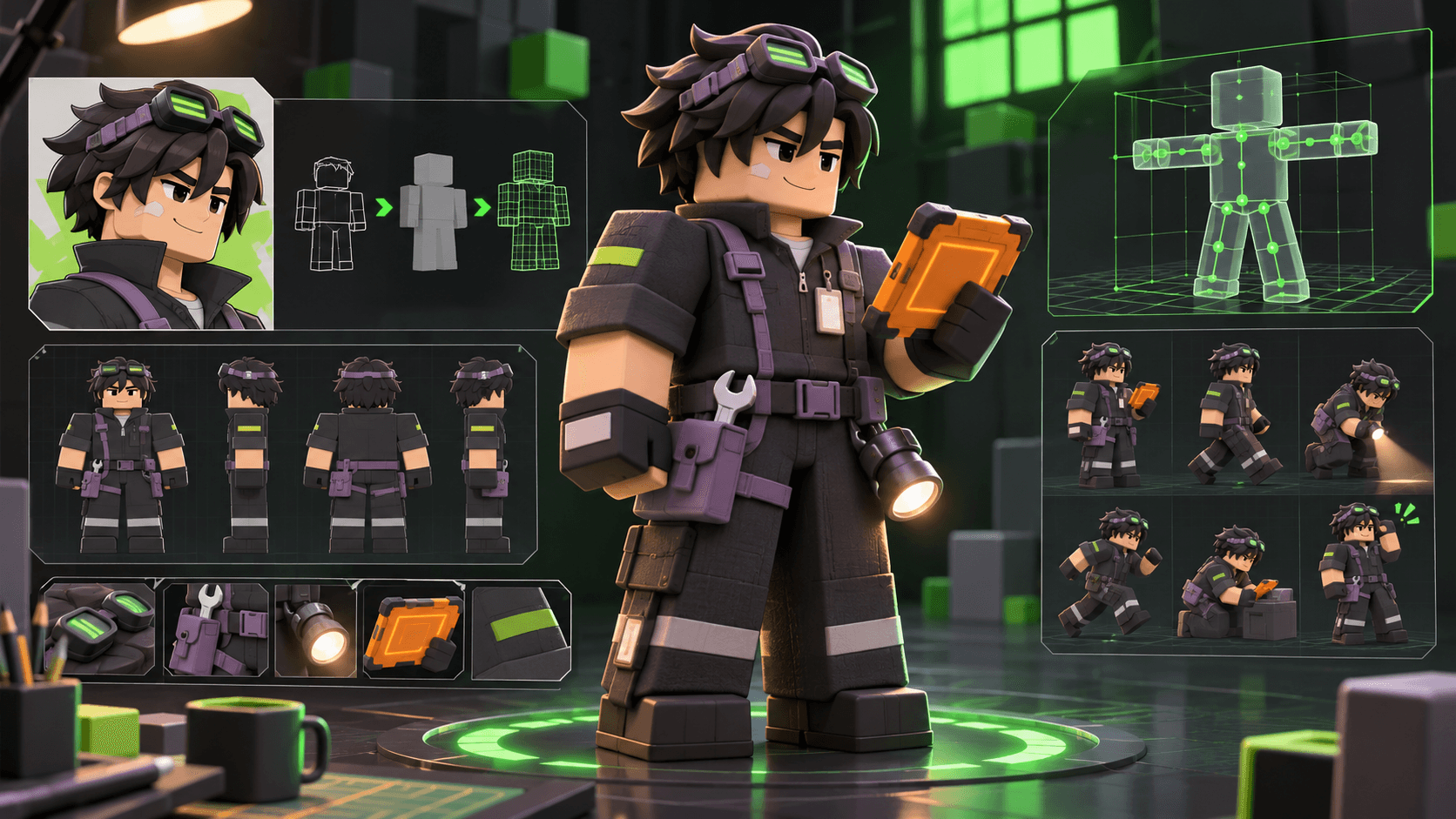
Protect face, hairstyle, outfit markings, and signature prop. Use moderate performance and create separate starting images for major angle changes.
Real-person portrait
Use only with permission. Keep movement subtle, avoid deceptive speech, and disclose synthetic media where appropriate.
Family or historical photo
Preserve dignity and context. Avoid inventing claims about what a real person said or did. Consider whether animation could mislead viewers about the source.
Product image
Make geometry, label, and material invariants explicit. Review every frame for spelling and packaging drift before advertising use.
Illustration or painting
Decide whether the goal is to preserve the artwork or reinterpret it. Motion can alter brushwork, line, and composition. Confirm you have the right to modify the source.
Landscape
Animate physical systems: wind affects leaves before heavy branches, distant fog moves more slowly, water reflections follow surface direction, and clouds should not race unless time-lapse is intended.
Using Elser AI Image Animator
Elser AI is designed for creators working with anime images, illustrations, OCs, and visual storytelling. Its image-animation workflow lets you upload an image or generate one first, then move into video generation. Depending on the active workflow, creators can compare video models and use motion or camera controls rather than managing separate tools for every stage.
A practical Elser workflow:
- create or upload an approved image;
- choose the final aspect ratio before animation;
- define a single motion beat;
- select an available model or preset appropriate to the shot;
- generate a short draft;
- compare identity, mechanics, and continuity;
- revise one instruction;
- export the accepted take and save its prompt.
If the source is an original character, create a canonical design first with the Elser AI OC Maker, which supports prompts, character attributes, and optional reference images.
Troubleshooting Guide
The image barely moves
Use measurable verbs and timing. Replace “bring the scene to life” with “turns head toward the door, raises left hand to shoulder height, and holds.”
The face changes
Reduce movement, camera orbit, occlusion, and lighting change. Use a sharper, larger face and list a few identity anchors.
The camera ignores the prompt
Remove competing camera words. Begin with a locked frame. Add only one move after the subject action is stable.
Hands deform
Use a source with clear hands, avoid intricate object contact, or split the action across an insert and a result shot.
Background elements melt
Reduce parallax, orbit, and large camera movement. Preserve architecture and move only named environmental elements.
The video loops poorly
Design start and end states that are visually compatible. A breathing loop or returning gaze works better than an irreversible action.
Text changes
Do not rely on generative motion to preserve critical small typography. Keep the camera stable, limit deformation around the label, and replace text in post-production if exact reproduction is required.
Ethical and Rights Checklist
- Use an image you created, licensed, or have permission to transform.
- Obtain consent before animating a real person in a sensitive context.
- Do not create deceptive evidence or impersonation.
- Protect private information and location details.
- Review platform rules for minors, intimate content, violence, and public figures.
- Disclose generated or altered media when required.
- Check commercial rights separately from technical access.
FAQ
Can AI animate any image?
Many images can be animated, but results depend on clarity, composition, motion complexity, and model support. A source that shows the necessary anatomy and space is easier to animate.
How much motion should I request?
Start with one primary action and one secondary response. Increase complexity only after identity and mechanics remain stable.
Do I need a negative prompt?
Use concise constraints for common failures, but prioritize positive direction. “Locked camera and fixed background” is more useful than a long list of things not to do.
What is the best image size?
Use a clear source large enough for important facial or product details and match the target aspect ratio. Exact requirements depend on the selected tool and model.
Can I animate a photo for free?
Some services offer free trials or limited plans. Free access, output quality, credits, watermarks, and usage rights vary, so verify the current plan before uploading sensitive images.
Can I animate an image for commercial use?
Possibly, but you need rights to the source and must follow the generator’s current terms. Also check trademarks, likeness rights, music, and disclosure requirements.
Conclusion
AI image animation works when you direct change instead of requesting generic movement. Prepare a clean source, assign motion by layer, use one camera idea, and review identity, mechanics, continuity, and the final edit point. The best prompt is not the longest. It is the one that makes the intended movement testable.