Free Image-to-Video AI Generators for Character Consistency: What Actually Helps in 2026
Image-to-video is the safest starting point for a recurring AI character. A text prompt asks a model to invent the person and animate the scene at the same time. A reference image removes part of that uncertainty: the face, outfit, colors, and composition already exist. The model can focus more of its effort on motion.
That does not mean any free image-to-video generator will keep your character perfect. Fast action can distort the body. A turn can reveal details the source image never showed. A hand crossing the face can cause identity drift. The useful question is not “Which tool never fails?” but “Which free or free-to-try workflow gives me enough control to test and repair a character?”
As of July 22, 2026, practical starting points include Runway Free, Luma Free, Adobe Firefly Free, HeyGen Free for talking characters, and anime-focused workspaces such as Elser AI. Kling 3.0, Seedance 2.0, Veo 3.1, Runway Gen-4.5, and Luma Ray3.2 are important paid or platform-dependent upgrades when the test becomes a production.
Quick answer
- Use Runway Free to test a controlled image-to-video motion with a one-time credit allocation.
- Use Luma Free for draft exploration, understanding that current free-tier documentation lists watermarks and non-commercial restrictions.
- Use Adobe Firefly Free for renewable daily experiments and a path into Creative Cloud editing.
- Use HeyGen Free when the “video” is primarily a talking or singing portrait.
- Use Elser AI when the character is anime-style and you want character design, storyboard, video, lip sync, and audio in one workflow; verify the live account offer rather than assuming a fixed free quota.
Free access is usually enough to evaluate a character, not to generate an unlimited series.
Why image-to-video improves consistency
The first frame acts as visual evidence. It tells the model exactly how wide the eyes are, how the bangs fall, which jacket layer sits on top, and where accessories belong. A written prompt such as “young anime swordswoman with black hair and a red coat” leaves hundreds of plausible interpretations. A reference image narrows the target.
Image-to-video works best when the requested motion does not require the model to invent hidden information. A small head turn is easier than a full 360-degree spin. A medium shot with subtle breathing is easier than an acrobatic leap. The further the motion moves from the known image, the more consistency depends on additional references or a model’s learned assumptions.
The best free and free-to-try options
Runway Free: best controlled first test
Runway’s current Free plan includes a one-time allocation of 125 credits, selected image and video tools, and Gen-4 Turbo image-to-video. Free outputs carry a watermark. The plan does not provide unrestricted access to the newest Gen-4.5 model.
Runway is useful because the test can grow into a fuller workflow. You can organize assets, create reference images, animate, and edit in the same environment. Start with a five-second clip and a restrained action. The goal is to learn whether the character survives motion, not to make a trailer with the first credits.
Runway says users retain rights to their generated content across plans, but you are still responsible for the rights to uploaded images, characters, and other assets.
Luma Free: best draft motion study
Luma’s current support information describes a Web Free plan with limited monthly credits, draft resolution, lower-priority processing, watermarks, and non-commercial use. Those limits make it a previsualization tool rather than a default final-output solution.
Use Luma Free to compare motions: slow push-in, hair moving in wind, character turning, or a simple walk. If the concept succeeds, evaluate a paid workflow. Luma’s current flagship, Ray3.2, adds professional controls including multiple keyframes and video modification; its draft options can help solve timing before expensive output.
Do not rely on old “Dream Machine” model names in a new comparison. Luma’s official current information identifies Ray3.2 as the current video model, while older Ray versions and product terminology may still appear in help pages.
Adobe Firefly Free: best renewable experiment
Adobe offers limited free daily generations across image, video, and audio. That renewable quota is useful for a creator who wants to improve a reference over several days rather than spend a one-time credit grant immediately.
Firefly’s broader advantage is finishing. If a face shifts slightly, you may be able to repair frames, composite an approved still, or edit around the problem in Adobe tools. Consistency is partly a post-production discipline.
Firefly includes Adobe and partner models. Check which model you select and which usage terms apply. Adobe’s claims about the training approach of its own Firefly models should not automatically be extended to third-party models offered in the same interface.
HeyGen Free: best talking or singing character
HeyGen’s free consumer plan currently offers a small quota of short videos and access to avatar tools. Avatar IV is designed for photo avatars and works particularly well with virtual, 2D, 3D, and non-human characters according to HeyGen’s own guidance.
If your character needs to deliver a line, sing a chorus, host a channel, or narrate a comic, a specialized avatar engine can preserve the face better than a wide cinematic model. The tradeoff is a narrower visual language: portrait and presenter shots are its natural territory.
The HeyGen API is priced separately and no longer offers free API credits, so do not confuse free web-app experimentation with free automated production.
Elser AI: best anime-character pipeline
Elser AI’s current product brings character generation, comic and manga creation, storyboarding, image animation, lip sync, voices, music, and sound into an anime-focused environment. This matters because consistency begins before video generation.
Build the original character, create turnaround views and expressions, place the character into storyboard panels, then animate approved frames. Keeping the visual source of truth close to the animation step reduces accidental redesign. Elser can serve as the workflow layer while different models handle different shots.
When paid models become worth it
Upgrade only after a free test identifies the missing capability.
- Choose Kling 3.0 when you need multimodal, narrative scenes and native audio.
- Choose Seedance 2.0 when you have text, image, video, or audio references and want flexible generation or editing.
- Choose Veo 3.1 when reference ingredients, first-and-last-frame control, audio, and cinematic output matter.
- Choose Runway Gen-4.5 when you need stronger core generation within a managed production workspace.
- Choose Luma Ray3.2 when keyframes, video modification, HDR, or professional finishing justify the cost.
Do not subscribe to five tools at once. The best upgrade is the smallest one that fixes your actual bottleneck.
Build a reference image that can survive motion
Use a neutral, readable pose
A dramatic crouch hides anatomy and clothing. Start with a relaxed three-quarter or front-facing pose. Keep the hands visible but separated from the body. Use even lighting and a simple background.
Show signature details clearly
If a red hairpin, asymmetric sleeve, or necklace defines the character, make it large and unambiguous. Tiny details are the first to disappear.
Avoid conflicting style signals
Do not mix photoreal skin, manga line art, painterly hair, and 3D clothing unless that hybrid is intentional. Consistent rendering gives the video model fewer interpretations.
Create more than one reference
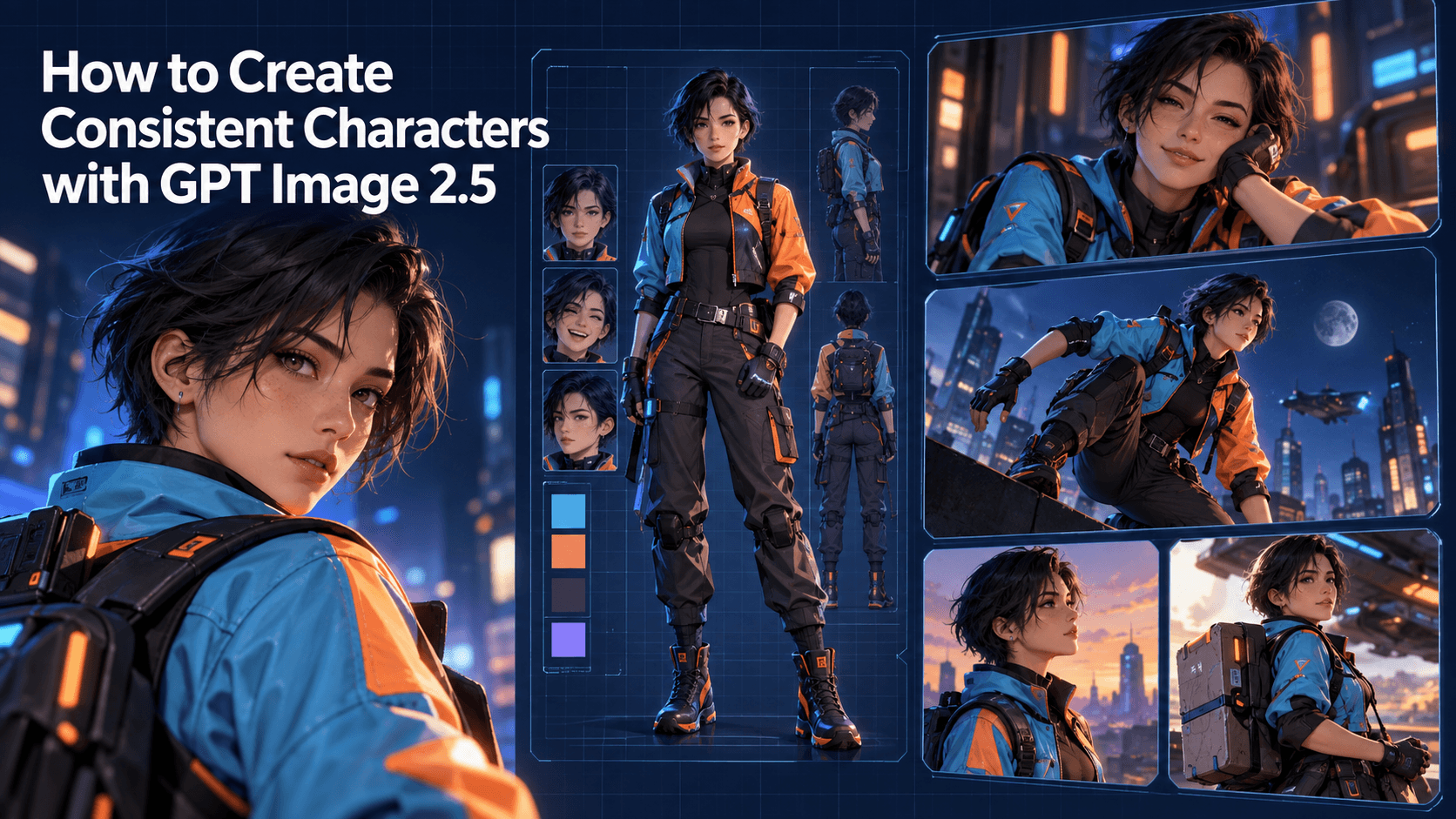
If the tool accepts several references, provide front, three-quarter, profile, full-body, and detail views. If it accepts only one image, make a clean character-sheet collage with consistent scale and labels only if the model handles sheets well; otherwise use the single view closest to the planned shot.
A five-shot consistency test
Use the same character and generate:
Shot 1: breathing close-up
Locked camera, subtle breathing, one blink, slight hair movement. This establishes the best-case baseline.
Shot 2: head turn
Turn from three-quarter view toward camera. This tests whether the model can infer the face from a new angle.
Shot 3: full-body walk
Three steps with a simple side-tracking camera. Review proportions, feet, clothing layers, and accessories.
Shot 4: hand near face
The character adjusts glasses or touches a cheek. Occlusion often exposes identity drift.
Shot 5: interaction
The character picks up a distinctive object. This tests hands, object permanence, and design stability.
Generate several versions of each. Score face, hair, clothes, body, temporal stability, and prompt adherence. A model that wins the close-up but loses the action shot may still be the right close-up specialist.
Prompting for image-to-video consistency
Describe what changes, not what the image already proves. A useful prompt structure is:
Subject remains identical to the reference. [Single action]. [Camera movement]. [Environmental motion]. Preserve face, hairstyle, outfit construction, colors, and accessories. No new objects or wardrobe changes.
For example:
The character remains identical to the reference. She turns slowly toward camera and gives a restrained smile. Locked medium close-up. A light breeze moves only the front strands of hair and scarf. Preserve facial proportions, eye color, hair silhouette, red hairpin, and jacket details.
Negative instructions can help, but they cannot compensate for an impossible shot. Reduce motion before adding another paragraph.
How to repair a nearly good clip
Cut before the drift begins. Hold the last clean frame. Insert a reaction shot. Replace three weak seconds rather than ten good ones. Use video-to-video modification if the platform supports it. In an editor, stabilize color and sharpness between clips so minor model differences feel less obvious.
For anime, deliberate limited animation can become a style advantage. A held pose with animated hair, eyes, lighting, and camera movement may look more authentic than constant full-body motion.
FAQ
What is the best free image-to-video AI generator?
Runway Free is a good one-time test, Adobe Firefly offers renewable daily experimentation, Luma Free supports limited draft exploration, and HeyGen Free specializes in talking or singing portraits. The best option depends on the motion and usage rights you need.
How do I stop an AI video from changing my character’s face?
Use a clean reference, keep shots short, limit rotations and occlusion, and focus the prompt on motion. Create multiple takes and edit around drift instead of demanding one long perfect clip.
Is image-to-video better than text-to-video for recurring characters?
Usually. It provides explicit visual identity information. Cross-shot consistency still requires the same references, stable settings, and human review.
Can I use free AI video commercially?
Terms vary. Runway states broad usage rights, while Luma’s current Web Free plan is listed as non-commercial. Watermarks and restrictions can also differ by model. Check current terms before publishing.
Can one image create multiple camera angles?
Models can infer unseen angles, but accuracy falls as the view moves away from the reference. A turnaround sheet or multiple reference images is safer.
Conclusion
Free image-to-video tools are best treated as auditions. Runway, Luma, Adobe Firefly, HeyGen, and Elser AI can each answer a different question about your character and workflow. Use the free tier to test identity under motion, learn where the design breaks, and identify the control worth paying for.
The reliable path is simple: approve the character first, animate one action per shot, keep clips short, score several samples, and repair with editing. Character consistency is not a magic checkbox. It is the result of strong references, restrained direction, and careful shot selection.