How to Create Manga with AI: From Blank Page to Finished Chapter (2026 Tutorial)
I’ve loved manga since I was a kid. Dragon Ball, Naruto, Attack on Titan – I consumed them all. And like millions of others, I dreamed of making my own.
But every time I picked up a pencil, reality hit. My anatomy was terrible. My backgrounds were empty. My speed lines looked like spaghetti.
Then AI arrived.
In 2026, how to create manga with AI is no longer a secret. Thousands of creators are using tools like Elser to produce manga that looks shockingly authentic – complete with screentones, dynamic angles, and consistent characters.
In this tutorial, I’ll walk you through the entire process: from character design to final export. No drawing tablet required. Just your story and a few hours.
The 5-Step Manga Workflow with Elser
1. Design your characters (using AI image generation).
2. Write your script (GPT-2 helps).
3. Lock character consistency (so faces don’t drift).
4. Generate page by page (choose shonen/shojo/seinen style).
5. Add screentones and speed lines (automatic in Elser’s manga mode).
Let’s dive into each step.
Step 1: Design Your Characters (Without Drawing)
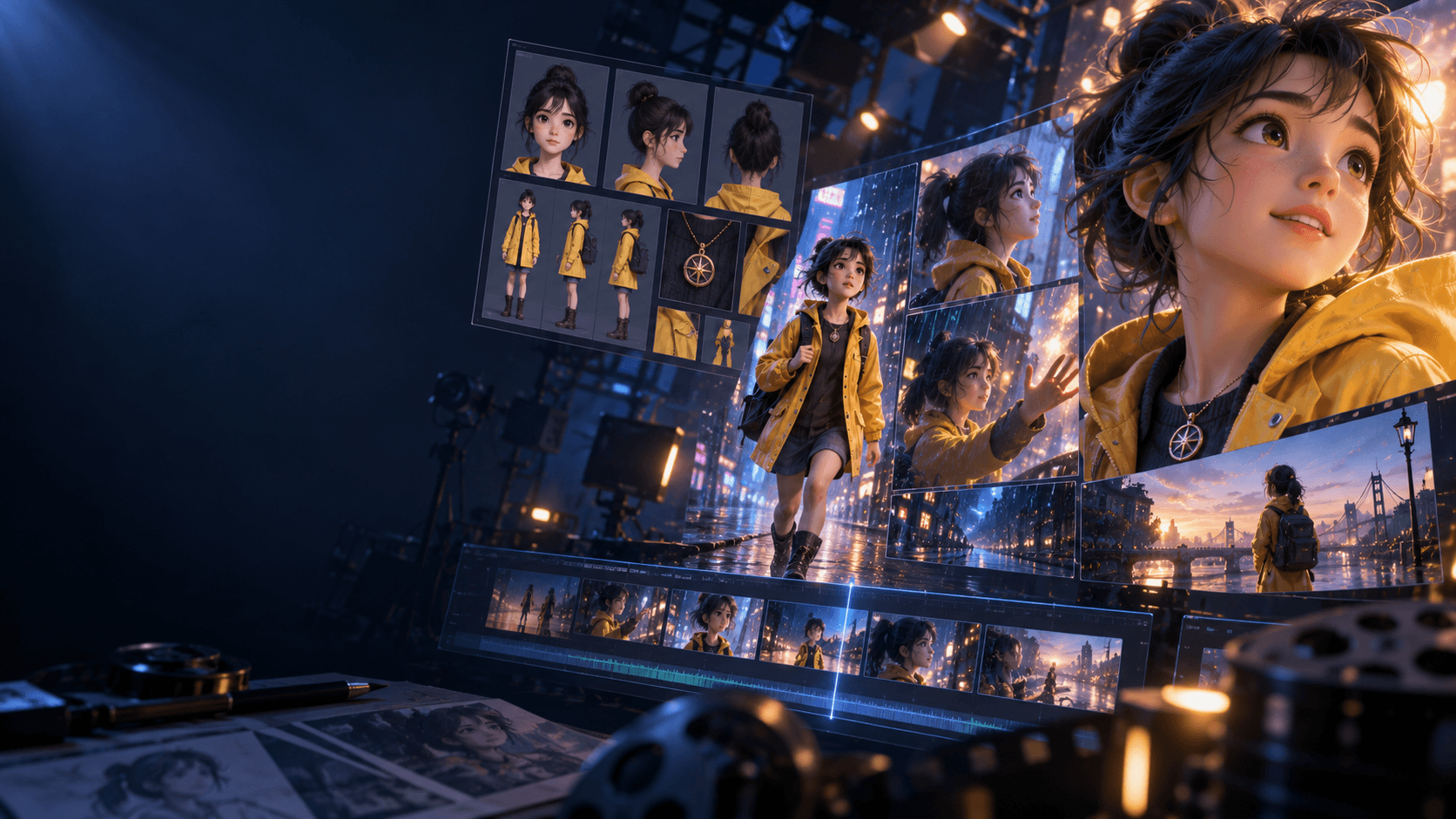
You need reference images of your main characters. Don’t worry if you can’t draw – Elser can generate them.
Method A: Describe your character
In Elser’s image generator, type: “Shonen manga protagonist, spiky black hair, red headband, determined eyes, wearing an orange gi, full body, manga style.” Generate 5-10 variations. Pick your favorite.
Method B: Upload inspiration
Find a manga character whose face shape you like (for personal use only – don’t copy copyrighted designs). Upload as a reference. Elser will create an original variation.
Pro tip: Generate at least 3 angles of each character (front, side, ¾). You’ll need them for character locking.
Step 2: Write Your Manga Script
You can write manually, or let Elser’s GPT-2 help.
Type a premise: “A young swordsman must defeat his former master who turned evil.”
GPT-2 suggests:
- Act 1: Training flashback, then the betrayal.
- Act 2: Hero seeks a legendary blade.
- Act 3: Final duel, emotional resolution.
Refine the beats. Then ask GPT-2 to break Act 1 into pages and panels. It will propose a page count (typically 6-8 pages per act for a short chapter).
Step 3: Lock Your Characters
Go to the Characters tab. Upload your 3 reference images for the hero. Name him. Click “Lock Features.” Repeat for the villain, side characters, etc.
Now every time you generate a page, Elser will ensure these characters look the same.
Step 4: Generate Pages (Manga Style)
Choose your manga style from Elser’s library:
- Shonen – for action, battles, tournaments.
- Shojo – for romance, drama, emotional stories.
- Seinen – for mature themes, detailed backgrounds, psychological depth.
Click “New Page.” Select a layout (e.g., 4 panels per page). For each panel, write a short prompt or use GPT-2’s suggestion. Then click “Generate Page.” Elser will produce all panels on that page in one go, maintaining character consistency.
Example page (Shonen):
- Panel 1 (large): Hero and villain face off, dramatic angle.
- Panel 2: Hero dashes forward, speed lines.
- Panel 3: Villain blocks with sword, sparks.
- Panel 4 (small): Hero’s determined eyes.
Step 5: Add Screentones and FX
Elser’s manga mode automatically applies appropriate screentones (the dot patterns you see in printed manga). You can adjust density or switch to “ink wash” for dramatic scenes.
For sound effects, type “SWISH” or “CRACK” and select a manga-style text effect. Elser will curve the text and add motion lines.
Step 6: Export Your Chapter
Export as:
- Print PDF (300 DPI, black and white or color).
- Webtoon scroll (vertical long image).
- Individual page images (for social media teasers).
I recommend exporting a test page first to check resolution.
Real Example: My 8-Page Shonen Pilot
Title: “Blade of the Fallen Star”
Pages: 8
Time spent: 5 hours total (including character design and script).
The final pages looked like a genuine indie manga. A few panels needed manual touch-ups (hands, as always), but 90% was ready to publish. I shared it on Twitter and got 300+ likes and multiple “Is this really AI?” comments.
Tips for Authentic Manga Results
- Use reference pages – Upload 2-3 pages from your favorite manga as “style guides.” Elser will mimic the line weight and panel borders.
- Don’t over-color – Traditional manga is black and white with screentones. Use Elser’s “grayscale manga” mode for authenticity.
- Add speed lines – In the effects menu, drag “speed line overlay” onto action panels.
- Use “gutter” margins – Leave space between panels for the classic manga look.
Common Manga AI Mistakes
Mistake: Characters look too clean and digital.
Fix: Apply a “paper texture” overlay (available in Elser’s effects).
Mistake: Backgrounds are too detailed, distracting from characters.
Fix: Use negative prompt: “simple background, focus on character.”
Mistake: Panel flow is confusing.
Fix: Use story mode’s auto-panel layout first, then manually adjust. Stick to standard reading order (right to left for manga, left to right for webtoons).
How to Create Manga with AI – Summary
1. Design characters using Elser’s image generator.
2. Write script with GPT-2 assistance.
3. Lock characters for consistency.
4. Generate pages in shonen/shojo/seinen style.
5. Add screentones and SFX.
6. Export as PDF or webtoon.
That’s it. Your manga exists.
Ready to Create Your First Chapter?
You’ve waited long enough. Your story deserves to be told.