How to Create Consistent Comic Characters with AI in 2026 (No Drawing)
The number one complaint about AI comics is inconsistent faces. The hero looks different on page one than page two. The villain‘s scar switches cheeks. It ruins immersion.
I had this problem too – until I learned Elser AI‘s character system. In 2026, creating consistent comic characters with AI is not only possible, it‘s automatic. Here‘s how.
The Problem: Why AI Forgets Faces
Most AI image generators start from scratch every time. You type “hero with scar on left cheek,” and the AI generates something close – but not identical – to the last generation.
Elser AI solves this with character locking. You design a character once, lock it, and the AI remembers that exact face forever.
Step 1: Create Your Character with OC Maker
Elser AI includes an OC Maker (Original Character Creator) with over 50 templates. You don‘t need to upload reference images or train models. Just describe your character.
How to use OC Maker:
1. In Elser AI , go to “Select Characters” → “Create New”
2. Choose a template. Options include:
- Anime OC Maker (general anime style)
- Fantasy OC Maker (for D&D, RPG characters)
- Fursona OC Maker (anthropomorphic animals)
- Chibi OC Maker (cute, small proportions)
- Fandom-specific: Demon Slayer OC Maker, Naruto OC Maker, One Piece OC Maker, Attack on Titan OC Maker, Jujutsu Kaisen OC Maker, Dragon Ball OC Maker, Pokemon OC Maker, Genshin OC Maker, Harry Potter OC Maker, Marvel OC Maker, DC OC Maker, and many more.
3. Describe your character in 1-2 sentences: “Young samurai, messy black hair tied in a ponytail, scar on left cheek, tired but kind eyes, wears a tattered blue haori.”
4. Click “Generate.” The AI shows you 4 variations.
5. Pick the one you like. Click “Lock Character.” Give it a name (e.g., “Kenshin”).
That‘s it. Your character is now saved in Elser‘s library.
Step 2: Use Your Locked Character in Comics
After creating a character, go to the Comic section. You‘ll see “Select Characters” at the top. Click it and choose “Kenshin” (or whatever you named them).
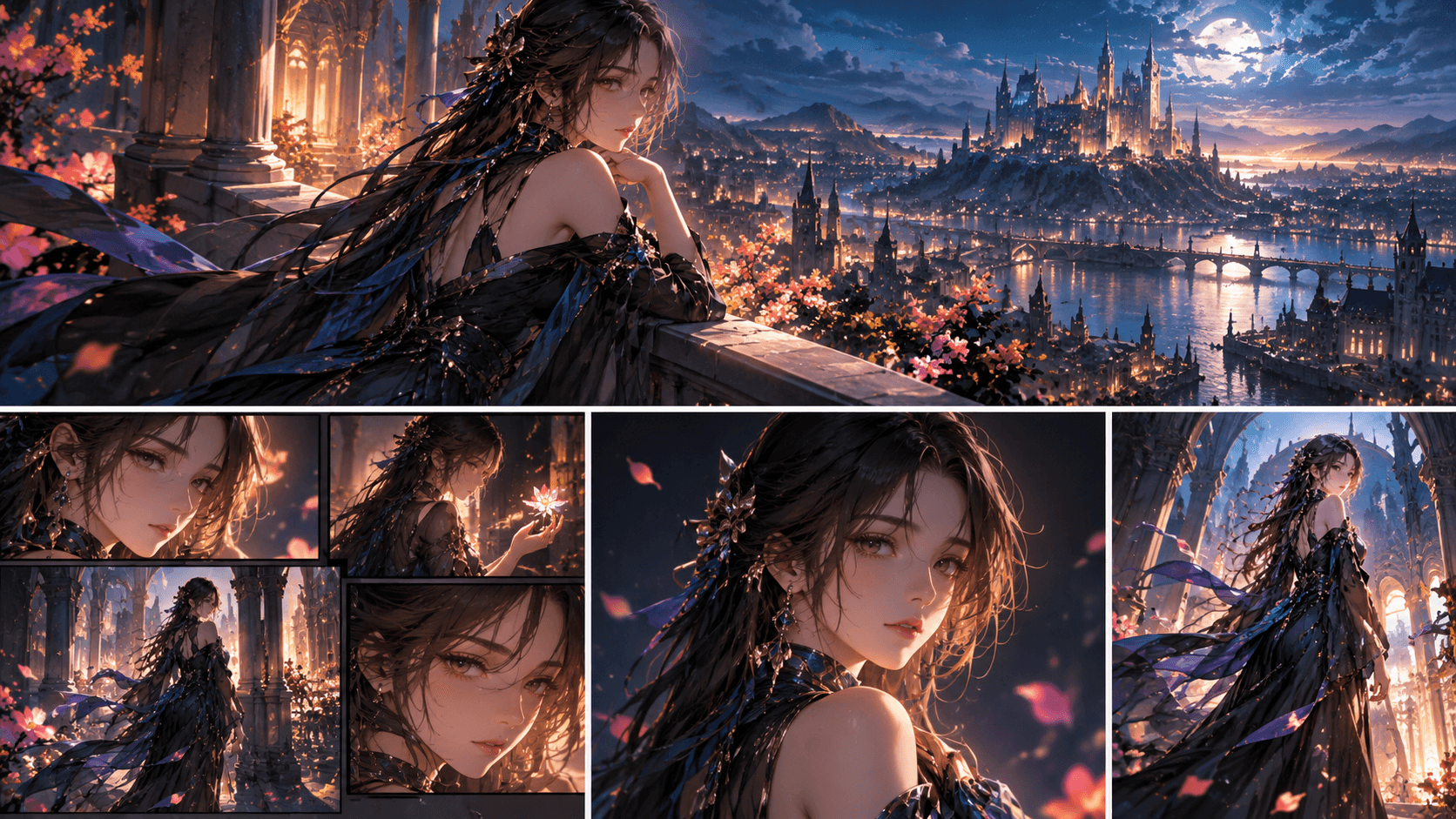
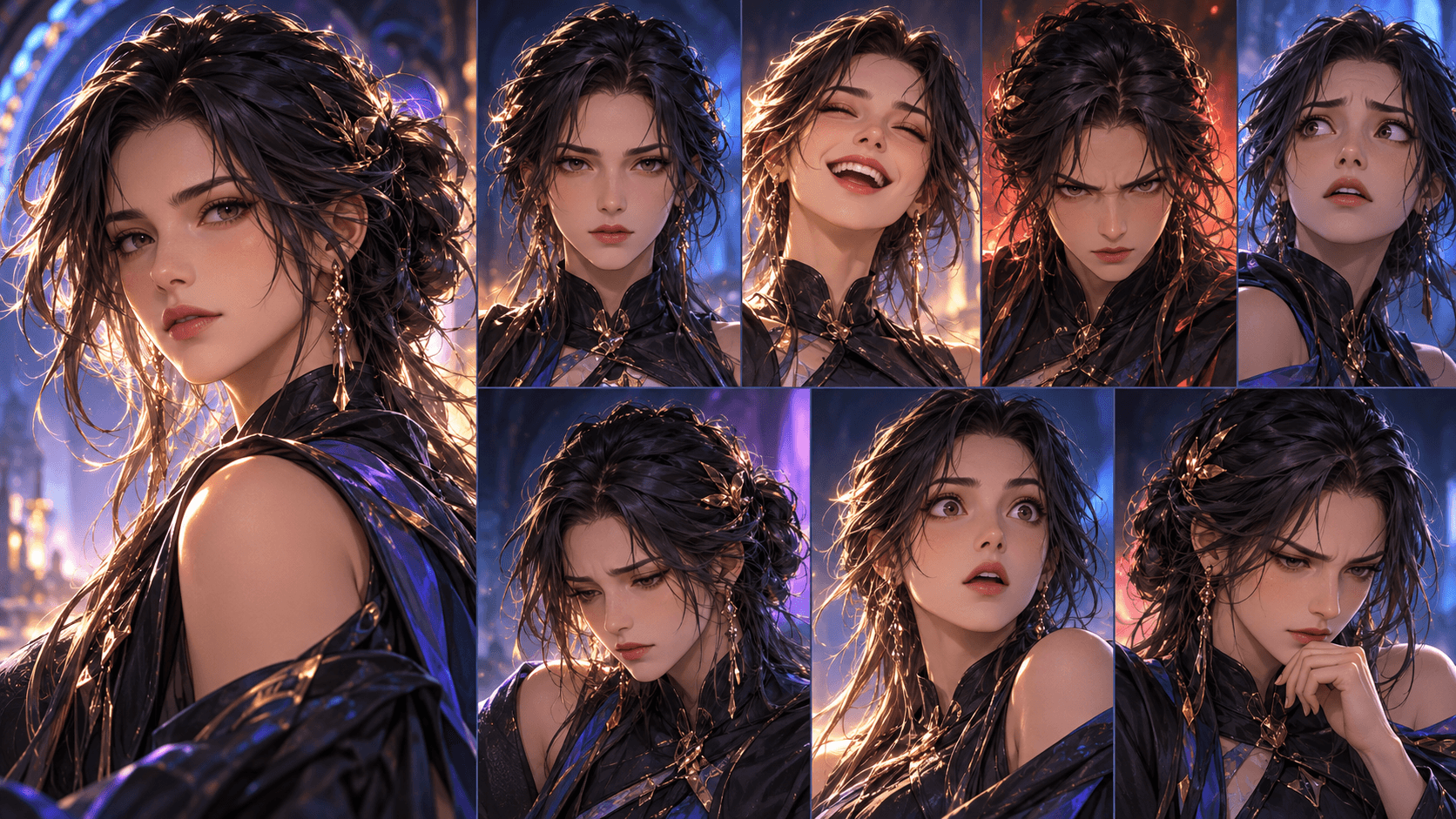
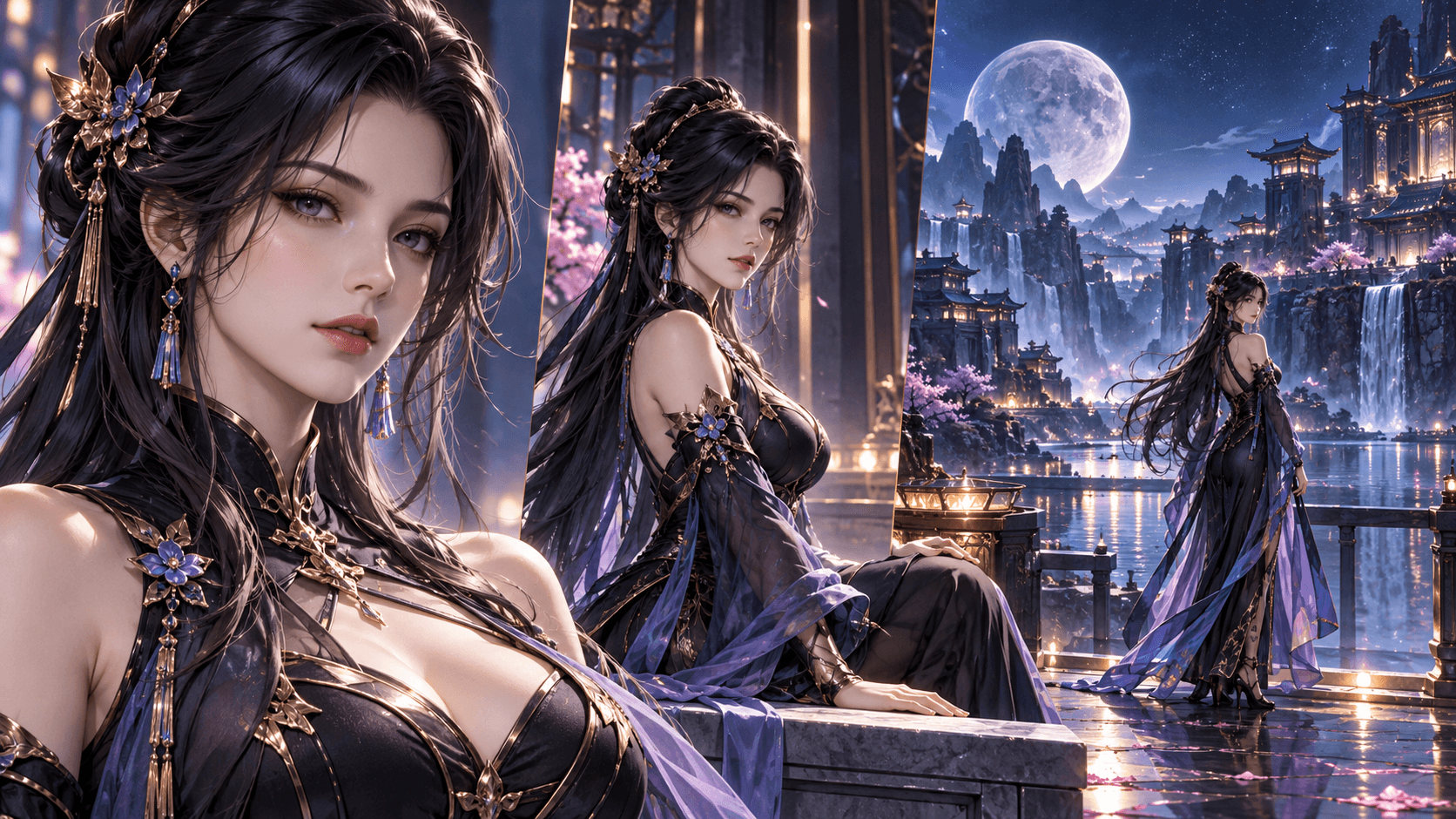
Now, every comic you generate will use Kenshin‘s exact face. The AI will place him in different poses, expressions, and angles – but his core features (face shape, scar placement, eye color, hair style) will stay identical.
I‘ve tested this across 100+ panels. The consistency is perfect. The only changes are intentional (expressions, lighting).
Step 3: Generate Expressions and Poses (Still Consistent)
You don‘t need separate steps for expressions. When you write your story, just describe the emotion: “Kenshin looks angry” or “Kenshin smiles sadly.” The AI applies the expression while keeping his locked face.
The same goes for poses. Write “Kenshin runs with his sword drawn” or “Kenshin sits by a campfire.” The AI handles the rest.
Step 4: Create Multiple Characters for Your Cast
You‘re not limited to one character. Create as many as you need:
- Hero
- Villain
- Sidekick
- Love interest
- Mentor
Each gets their own locked design. Then, in your comic script, refer to them by name. The AI will place the correct faces in the correct panels.
Example script:
“Kenshin and Akiko stand back to back. A dozen bandits surround them. Kenshin draws his sword. Akiko raises her staff. Bandits charge.”
The AI knows exactly who Kenshin and Akiko are because you locked them both.
Real Example: Consistent Character Across 20 Panels
Last month, I created a character using the “Fantasy OC Maker” template. Description: “Elven archer, long silver hair, green eyes, pointed ears, wears leather armor with leaf patterns.”
Locked her as “Lirael.”
Then I generated a 20-panel comic (5 pages, 4 panels each). The story had Lirael in different settings: forest, cave, castle, battlefield. Different expressions: focused, scared, triumphant, sad.
Every single panel had the exact same face. The silver hair flowed the same way. The pointed ears were consistent. The green eyes stayed green.
I did not need to regenerate anything for consistency. The AI handled it automatically because I locked the character first.
What About Outfits and Hairstyles?
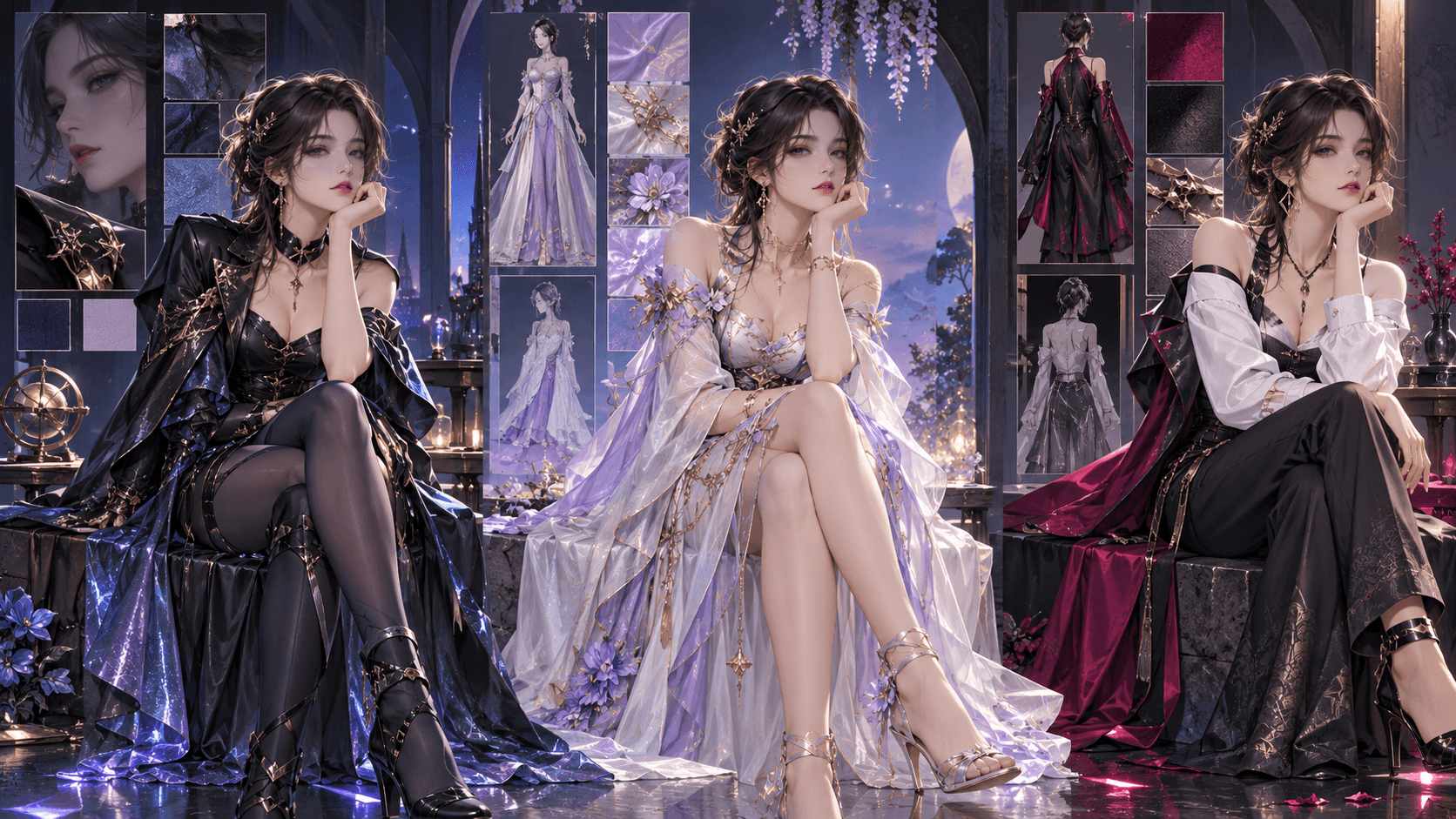
Locking a character locks their *face and body proportions*, not their clothes or hair. You can change outfits by describing them in your story: “Lirael wears a royal dress for the ball” or “Lirael puts on a hooded cloak.” The AI will apply the new outfit while keeping her face.
If you want a character to have multiple hairstyles (e.g., ponytail vs. loose hair), create two separate locked characters – “Lirael_Ponytail” and “Lirael_Loose” – and use the appropriate one for each scene.
Common Questions
Q: How many characters can I lock?
A: As many as you want. Elser‘s free tier allows 5 locked characters. Pro allows unlimited.
Q: Can I edit a locked character after creating them?
A: Yes. Go back to “Select Characters,” choose the character, and click “Edit.” You can regenerate a new version or adjust the description.
Q: What if the AI messes up the character in a panel?
A: Regenerate that panel only. The locked character will stay consistent across regenerations.
Q: Do I have to use OC Maker? Can I upload my own art?
A: Yes. You can upload a reference image (PNG or JPG) and Elser will create a locked character based on it. OC Maker is just the easier option.
Q: Will the character work in both GPT Image 2 and Nano Banana Pro?
A: Yes. Character locking works across both models.
Your Consistent Cast Awaits
Learning how to create consistent comic characters with AI is the single most important skill for AI comic creators. Without it, your comics will look disjointed. With it, they look professional.
Elser AI ‘s OC Maker and character locking system makes this effortless. Design once. Lock once. Generate forever.
Create your first locked character today at https://www.elser.ai/. Choose from 50+ OC Maker templates – Anime, Fantasy, Fursona, or your favorite fandom. Then go to the Comic section and watch your character come to life across every panel. Free to start.