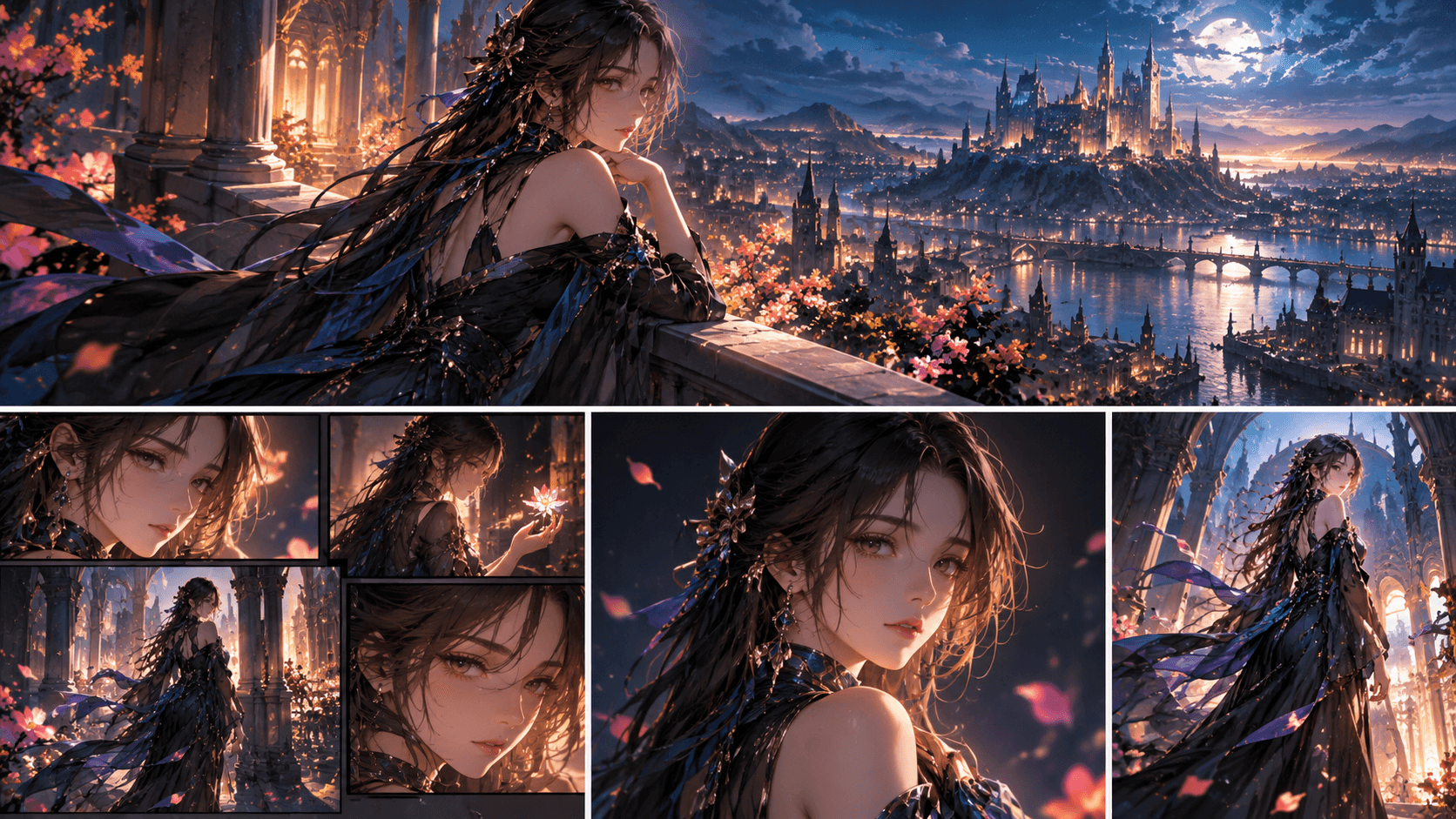
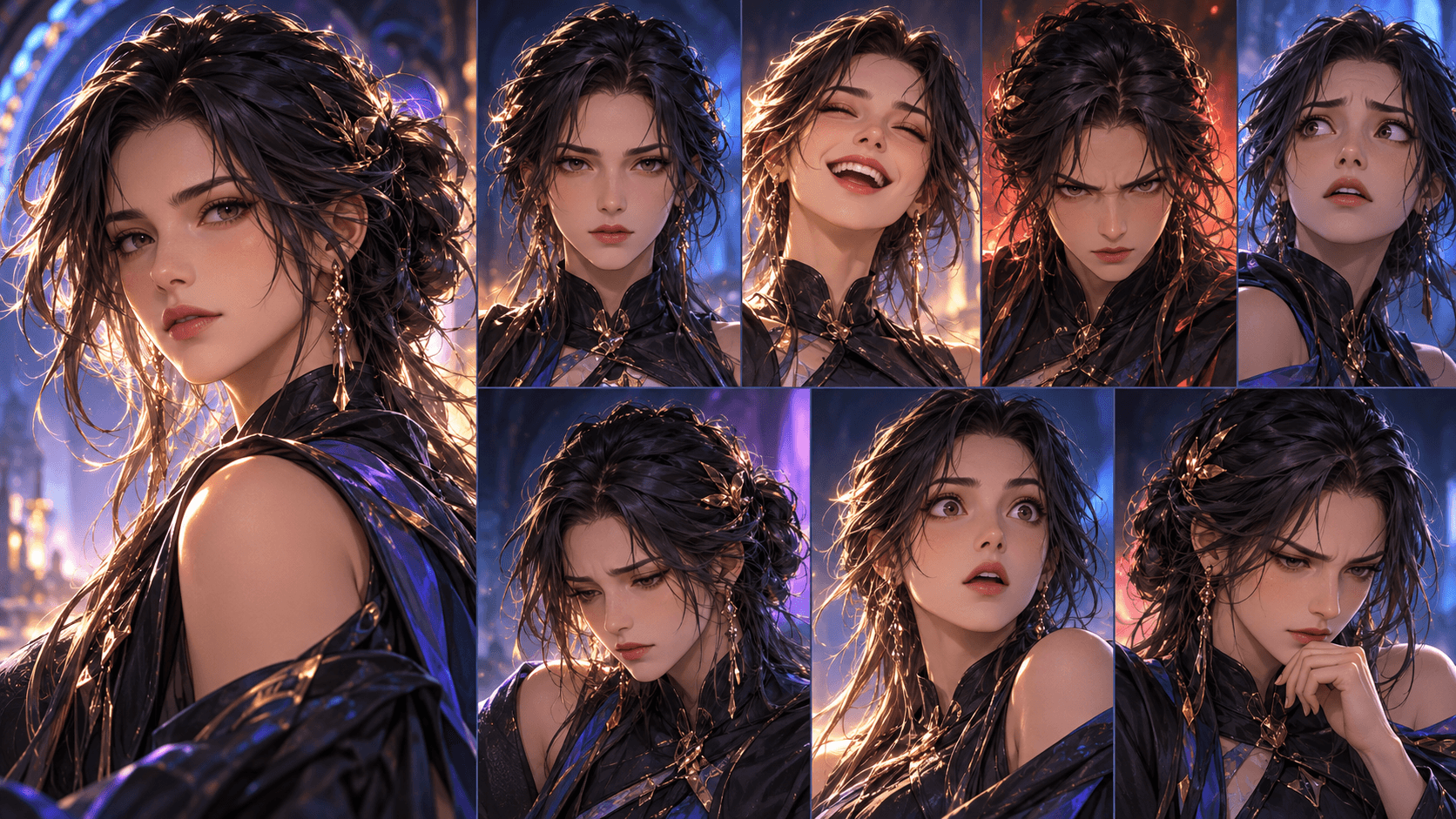
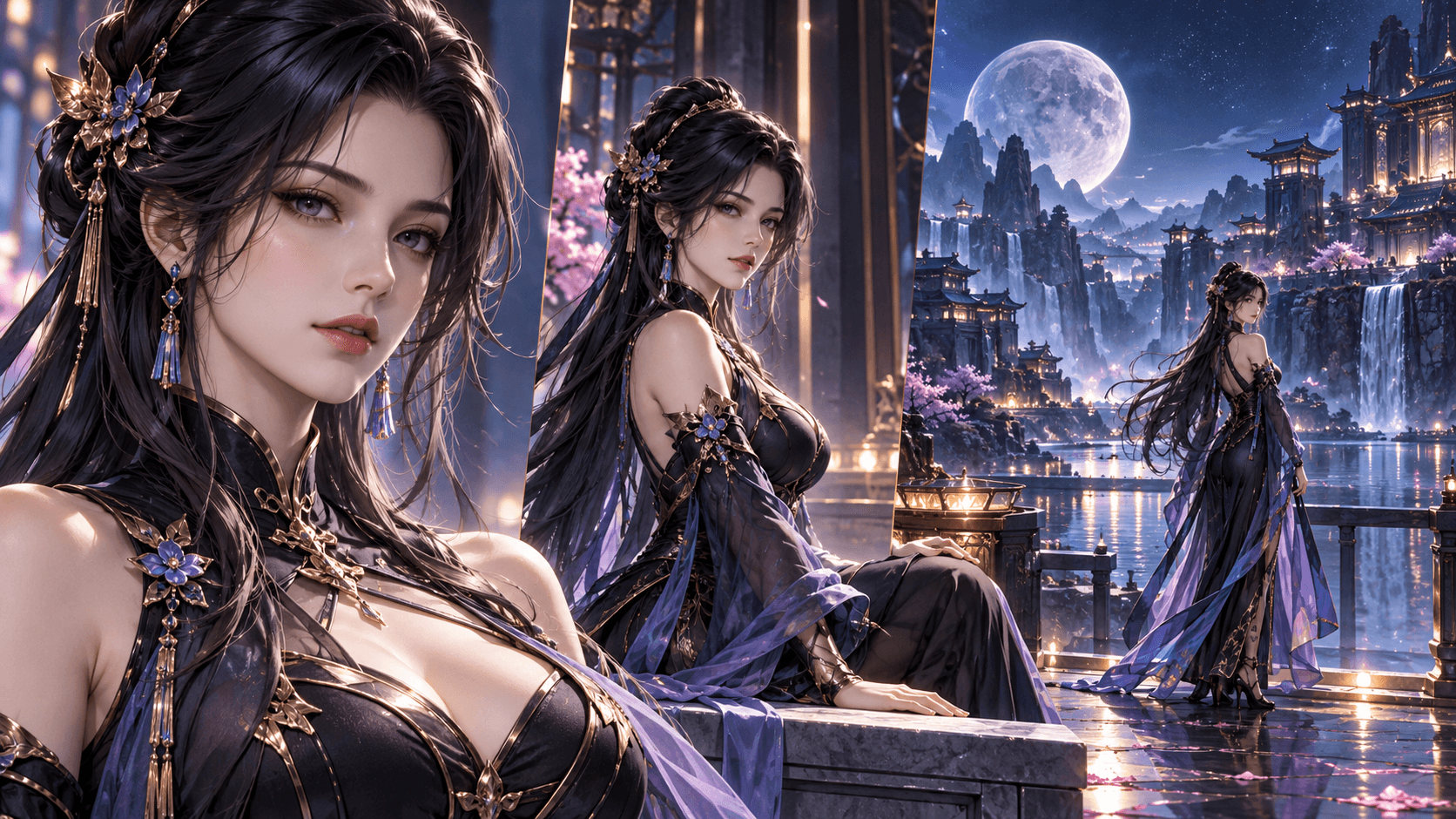
How to Turn a Story into a Manga with AI in 2026: Just Write, Then Generate
I used to think making a manga required years of art school, expensive tablets, and a team of assistants. Then I found a tool that lets me turn a story into a manga with AI in about five minutes. No drawing. No layers. No stress.
The tool is Elser AI. And the best part? The interface is so simple that my 12-year-old nephew used it to make his first comic last weekend.
In this guide, I‘ll show you exactly how to go from a story idea to a finished manga page using Elser‘s comic generator. You‘ll learn which settings to pick, how to keep characters consistent, and why you don‘t need any technical knowledge.
The Only Three Things You Need to Know
Before we dive in, understand this: Elser AI‘s comic generator is built for regular people, not engineers. You don‘t need to understand diffusion models or embeddings. You just need:
1. A story (or use the “Surprise Me” button)
2. A few clicks to choose your style and settings
3. One click to generate
That‘s it. Everything else is automatic.
Step 1: Start with Your Story – Or Let AI Surprise You
Open Elser AI and go to the Comic section. You‘ll see a text box labeled “Your Story.” This is where you paste your manga script or a short story description.
What to write: Keep it simple. A few sentences or bullet points work fine. For example: “A lone samurai walks through a futuristic city. He sees a hologram of his lost daughter. He reaches out but his hand passes through. He draws his sword and walks away.”
If you don‘t have a story yet, click the “Surprise Me” button. The AI instantly generates a random story prompt. In 2026, these prompts are surprisingly good – I‘ve gotten ideas like “A space pirate crew discovers an abandoned ship with a mysterious AI” and used it to make a full 4-panel comic.
Step 2: Pick Your Comic Style – One Click
Below the story box, you‘ll see style categories. Elser offers five main styles, each with sub-options:
- Japanese Manga – Shonen, Shojo, Seinen, Chibi
- American Comic – Marvel Style, DC Style, Indie Comic, Noir
- Chinese Manhua – Wuxia, Modern, Ink Wash
- European BD – Classic BD, Franco-Belgian, Graphic Novel
- Cartoon & Animation – Western cartoon styles
Don‘t overthink this. For your first comic, pick Shonen (Japanese Manga) – it‘s the most universal. You can change it later.
Step 3: Choose Your AI Model – GPT Image 2 or Nano Banana Pro
You‘ll see two model options:
- GPT Image 2 – Fast, great for web use, 8 images per sheet. Perfect for testing and social media.
- Nano Banana Pro – High-fidelity output, supports 2K/4K. Use this for print-quality comics or when you want extra detail.
For beginners, start with GPT Image 2. It‘s faster and more forgiving. Upgrade to Nano Banana Pro when you‘re ready to publish.
Step 4: Set Your Comic Format and Panels
Two format options:
- Strip Comic – Horizontal strip, good for webtoons and social media
- Panel Comic – Classic grid layout (2x2, 3 rows, L-shape)
Then choose:
- Aspect Ratio – 16:9 (widescreen) or 4:3 (traditional)
- Panel Count – 4, 5, or 6 panels per page
For a first test, use Strip Comic, 16:9, and 4 panels. You‘ll get a clean horizontal strip that‘s easy to share.
Step 5: (Optional) Select Characters for Consistency
If you want the same character to appear across multiple panels with the same face, use the “Select Characters” feature.
You can upload a reference image or generate a character from text. Once saved, Elser will keep that character‘s face consistent in every panel. This is the magic of AI comic generation – no more “face drift.”
Step 6: Generate Your Comic
Click “Generate Comic from Script.”
Wait 20-60 seconds depending on your model and panel count. The AI reads your story, applies your style settings, and creates a complete comic page with panels in order.
That‘s it. You‘re done.
What You Get
The output is a single image (or multiple images for multi-page comics) with your panels arranged according to your selected format. The AI handles:
- Panel composition
- Character placement
- Backgrounds
- Consistent character faces (if you used Select Characters)
- Action sequencing
You don‘t need to edit anything unless you want to add speech bubbles (which Elser doesn‘t do automatically – more on that later).
Real Example: My 4-Panel Comic in 3 Minutes
I tested this workflow yesterday. Story from “Surprise Me”: “A cat tries to steal fish from a market. The vendor chases him. The cat outsmarts the vendor by knocking over a barrel. The cat eats the fish on a rooftop.”
Settings:
- Style: Cartoon & Animation
- Model: GPT Image 2
- Format: Strip Comic, 16:9, 4 panels
Clicked generate. 35 seconds later, I had a 4-panel comic strip. The cat looked the same in every panel. The vendor‘s angry expression was perfect. The only thing missing was speech bubbles – I added those later in Canva.
Adding Speech Bubbles (The Only Manual Step)
AI comic generators (including Elser) don‘t add text inside panels yet. You‘ll need to do that yourself. But it‘s easy:
1. Download your comic as PNG
2. Open Canva, Photoshop, or any image editor
3. Add speech bubble shapes and type your dialogue
4. Export
This takes about 5-10 minutes per page. For a 4-panel strip, it‘s 2 minutes.
Why Elser Is the Best AI Comic Generator for Beginners
Compared to other tools I‘ve tested in 2026, Elser is the only one that:
- Requires zero technical setup
- Has a clean, intuitive interface
- Offers both fast (GPT Image 2) and high-quality (Nano Banana Pro) models
- Includes character consistency without extra steps
- Generates full comic pages, not just single panels
I‘ve tried tools that make you write prompts for every single panel. Elser does the whole page at once. That‘s the difference between a hobby and a real workflow.
Common Questions
Q: Do I need to write a detailed script?
A: No. A few sentences work. The AI is good at turning simple descriptions into panels.
Q: How do I make characters look the same across panels?
A: Use “Select Characters” before generating. Lock each character once, then the AI remembers them.
Q: Can I sell comics made with Elser?
A: Yes, with the Pro plan. Check the terms for commercial rights.
Q: What‘s the difference between GPT Image 2 and Nano Banana Pro?
A: Speed vs. quality. GPT Image 2 is faster and good for web. Nano Banana Pro is slower but outputs 2K/4K resolution.
Q: How many panels per page is best?
A: 4 panels for simple stories, 5-6 for more detail. Start with 4.
Your First Comic Awaits
Learning how to turn a story into a manga with AI has never been easier. You don‘t need to understand prompts, embeddings, or diffusion. Just write your story, pick your style, click a button, and watch the AI draw for you.
Ready to see your story become a manga? Sign up for Elser AI for free and get 50 comic generations with GPT Image 2. No credit card required. Upgrade to Pro for Nano Banana Pro 4K output and unlimited pages. Start now at https://www.elser.ai/.